
1. Precondition
After you complete the registration and log in to the system, an initial team will be automatically created for you. If you need to manage multiple projects or group members, you can create a new team by following these steps.
2. Operating steps
Step 1: Locate the entry point for team information
In the lower left corner of the interface, you will see the information card of the current default team (as shown in the following picture), which includes the team name, team ID, number of members, and other information. Move the mouse to this card area to prepare to trigger the team list pop-up window.
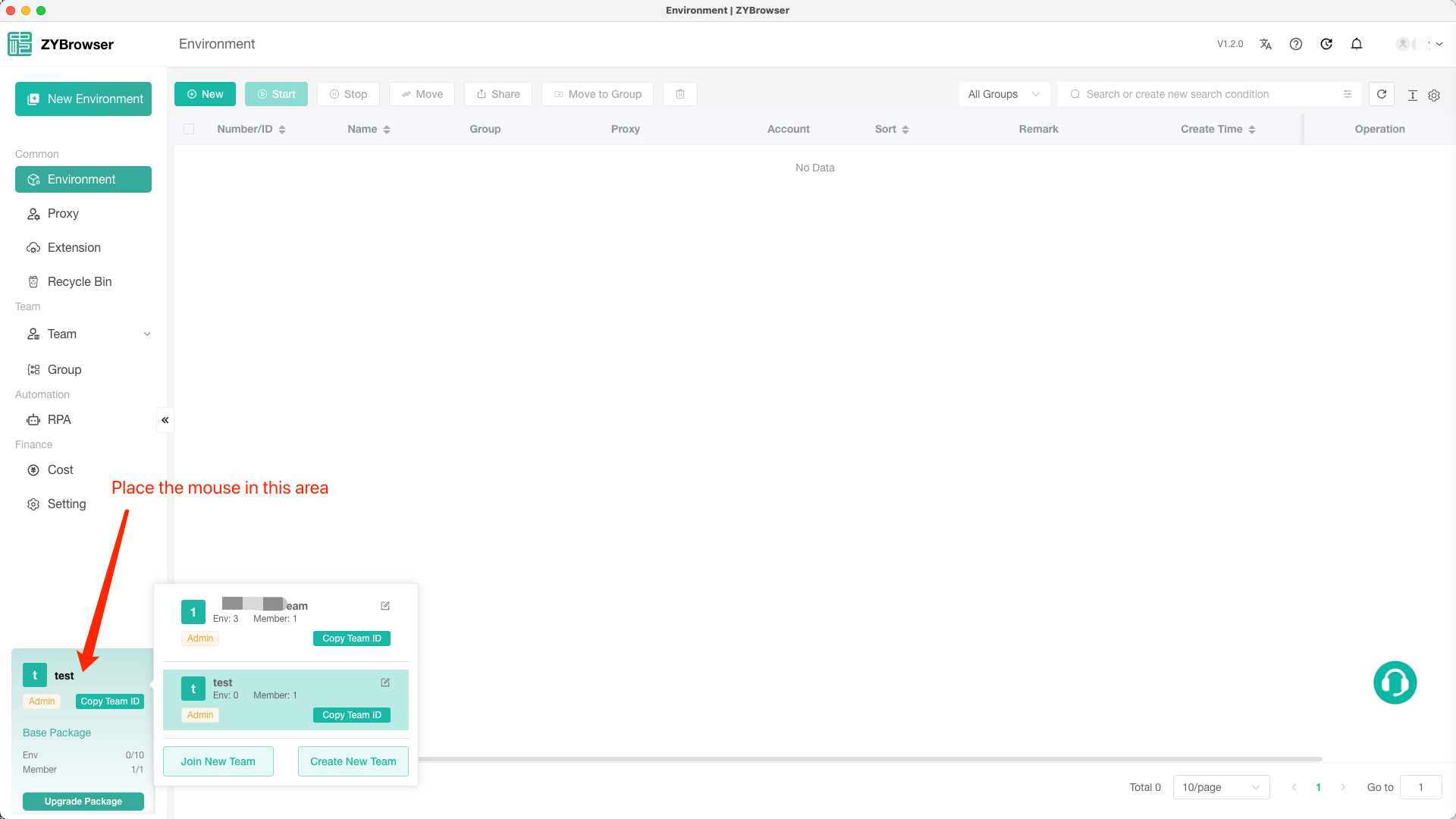
Step 2: Trigger the team list pop-up window
Keep the mouse hovering over the team information card at the lower left corner. The system will automatically pop up a floating list, showing all the teams under the current account.
Step 3: Click the "Create New Team" button
Below the popped-up list of teams, locate the button labeled "Create New Team". Click on this button and you will be able to start the process of creating a new team.
⚠️ Note: Do not click the "Join New Team" button. This function is for applying to join existing teams, not for creating new teams.
Step 4: Fill in the information of the new team
After clicking "Create New Team", the system will redirect to the team creation form page. You need to fill in the following information as prompted:
- Team Name: Custom team name (suggested to be concise and clear, such as "Marketing Department Project Team" "Product A Development Team")
After filling in, submit the form. The new team will be successfully created and can be viewed and managed in the team list.
After the new team is successfully created, the system will automatically switch to the newly established team.
3. FAQ
Is there a fee for creating a new team?
- Currently, creating a new team is free.
Can the team name be changed or the team be deleted?
- After the team is created, the team name can be modified, but the team cannot be deleted.
4. Summarize
By following these steps, you can quickly create multiple teams to meet various collaboration needs. If you encounter any system abnormalities during the operation (such as buttons not responding or page errors), you can try refreshing the page or contact the platform customer service. We hope this tutorial can help you manage your team efficiently!
If you have any further questions, please feel free to let us know at any time~