
1. Prerequisites
In ZYBrowser, there are two ways to invite other users to join your team. Regardless of which method is used, after the invitation, it needs to be approved by the administrator. Only then can the invited users officially join the team.
2. Invitation method 1: Invitation via link/QR code (suitable for quick sharing)
This method is suitable for sending the team invitation link or QR code to the target users (such as via WeChat, email, etc.). After the users fill in the application information through the link, the administrator can review and complete the membership process.
Step 1: Enter the "Invite Users" pop-up window
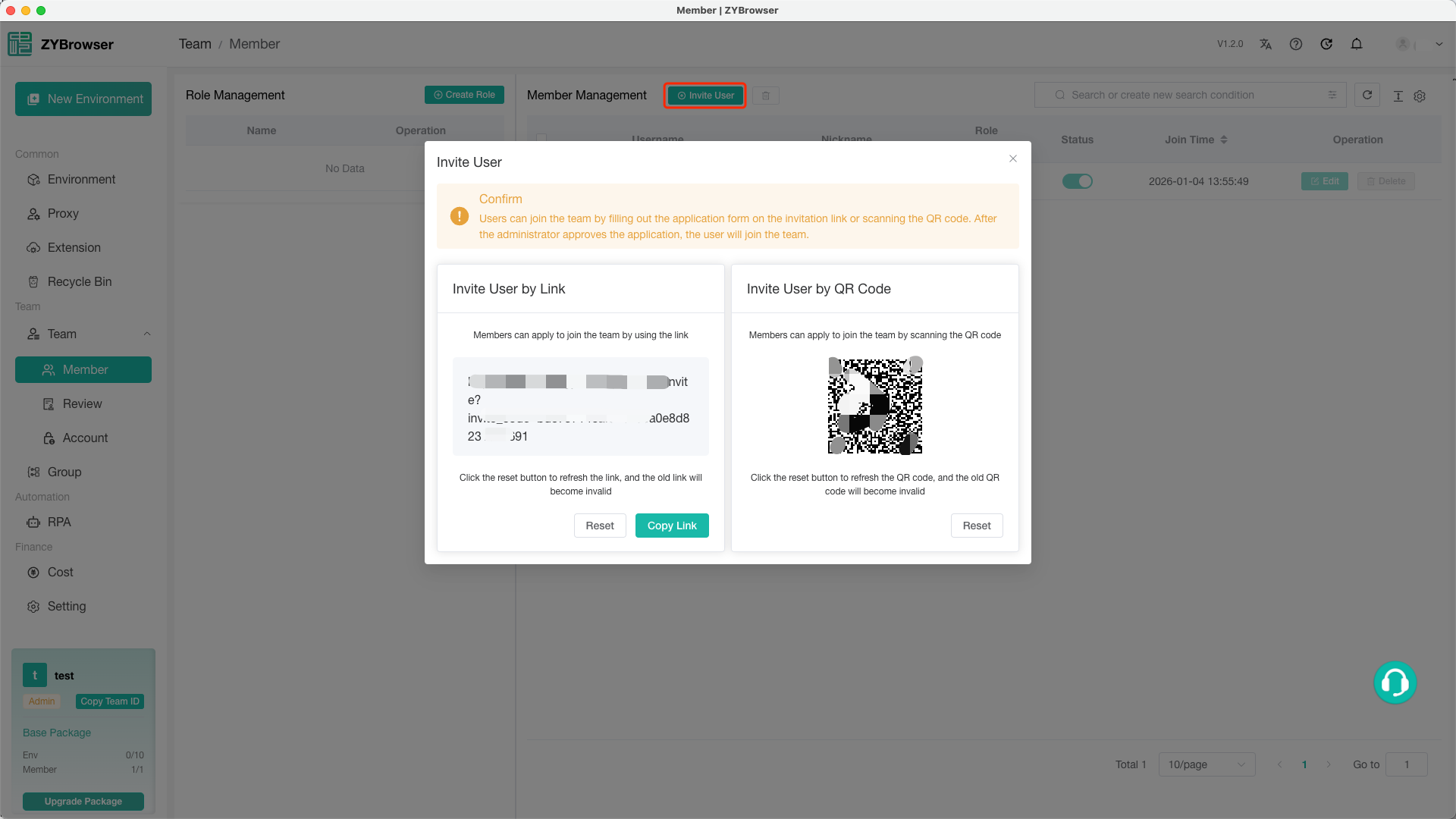
Log in to ZYBrowser, switch to the team where the invited users are located, and enter the "Team Management - Member Management" module. Click the "Invite Users" button on the right side of the User Management section.
Step 2: Select a link or QR code for invitation
Pop up the "Invite User" window
- If the link is broken or needs to be regenerated, click the "Reset" button (the old link will immediately become invalid, and a new link will be generated).
- Click the "Copy Link" button to copy the link to the clipboard, making it convenient for pasting and sharing (such as in the WeChat chat box or email body).
- If the QR code is invalid or needs to be regenerated, click the "Reset" button (the old QR code will immediately become invalid, and a new QR code will be refreshed).
Step 3: User Application and Review
- When the invited users receive the link or scan the QR code, they will open the page to fill in the form information and submit the application (if the user has not registered an account, a new account will be automatically created).
- The administrator goes to "Team Management - Member Review", where they can view all application records. By clicking the "Approve" or "Reject" button of the corresponding record, they can complete the operation.
⏳ After the review is approved, the user will be automatically added to the team, and the number of team members will be updated simultaneously.
3. Invitation method 2: Invitation via team ID (suitable for precise transmission)
This method is suitable for directly informing users of the team ID. Users submit the application actively through the "Join New Team" entry, and the administrator will approve and add them.
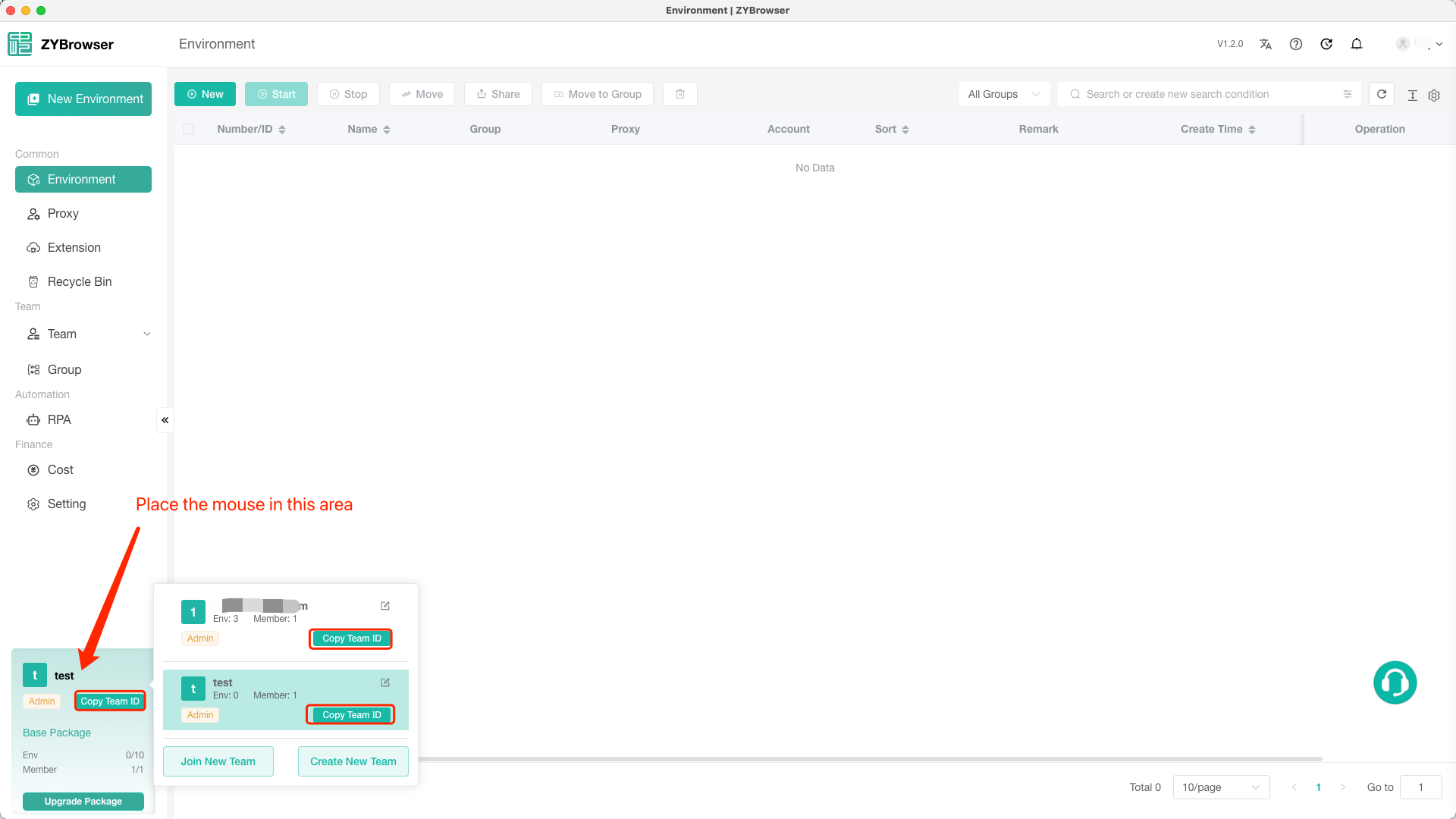
Step 1: Obtain the team ID
- Enter the page of the target team.
- In the team information area on the lower left corner, find the "Copy Team ID" button and click it to copy the team ID to the clipboard.
Step 2: The user initiates the application to join.
The invited users are required to submit the application through the following path:
- Open the ZYbrowser and log in with your account.
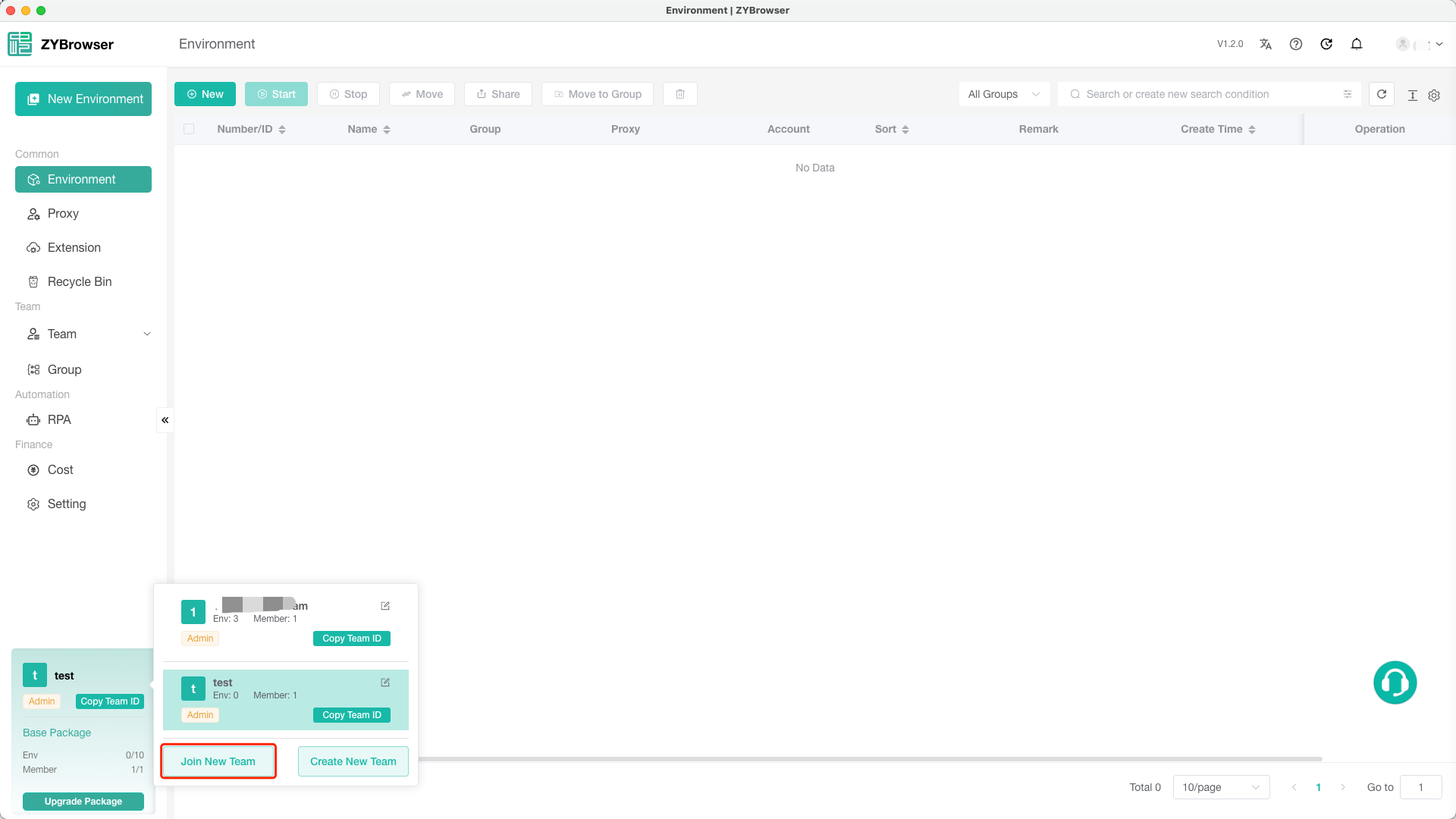
- Move the mouse cursor into the team information box at the lower left corner to reveal the team list. Then click the "Join New Team" button at the bottom of the team list.
- In the "Join New Team" dialog box, paste the previously copied team ID (such as "team_abc123"), and submit the application.
Step 3: Administrator Review
- The administrator goes to "Team Management - Member Review" and can view all application records. By clicking the "Approve" or "Reject" button of the corresponding record, the operation can be completed.
4. Summarize
Through links/QR codes or team IDs for invitation, it can flexibly meet the team recruitment needs in different scenarios. Both methods require administrator review to ensure the safety and controllability of team members.
If you have any questions during the operation (such as viewing the review records, handling link failure), you can click the "Help Center" on the upper right corner of the interface or contact the platform customer service for support~