
ZYBrowser as a tool dedicated to privacy protection and multi-account management, supports a convenient account login function. Below, based on the actual login interface (including the dual modes of "password login" and "verification code login"), we will detail the login steps for you.
1. Preparation before logging in
If you have completed the registration, simply use the account/phone number and password you used during registration, or the bound phone number and verification code to log in. If you haven't registered, you can click "Don't have an account? Register now" on the login interface to proceed to the registration process (the main focus of this article is the login procedure).
2. Specific login steps
Step 1: Launch the software and enter the login interface
Open the ZYbrowser software, and it will automatically redirect to the login interface.
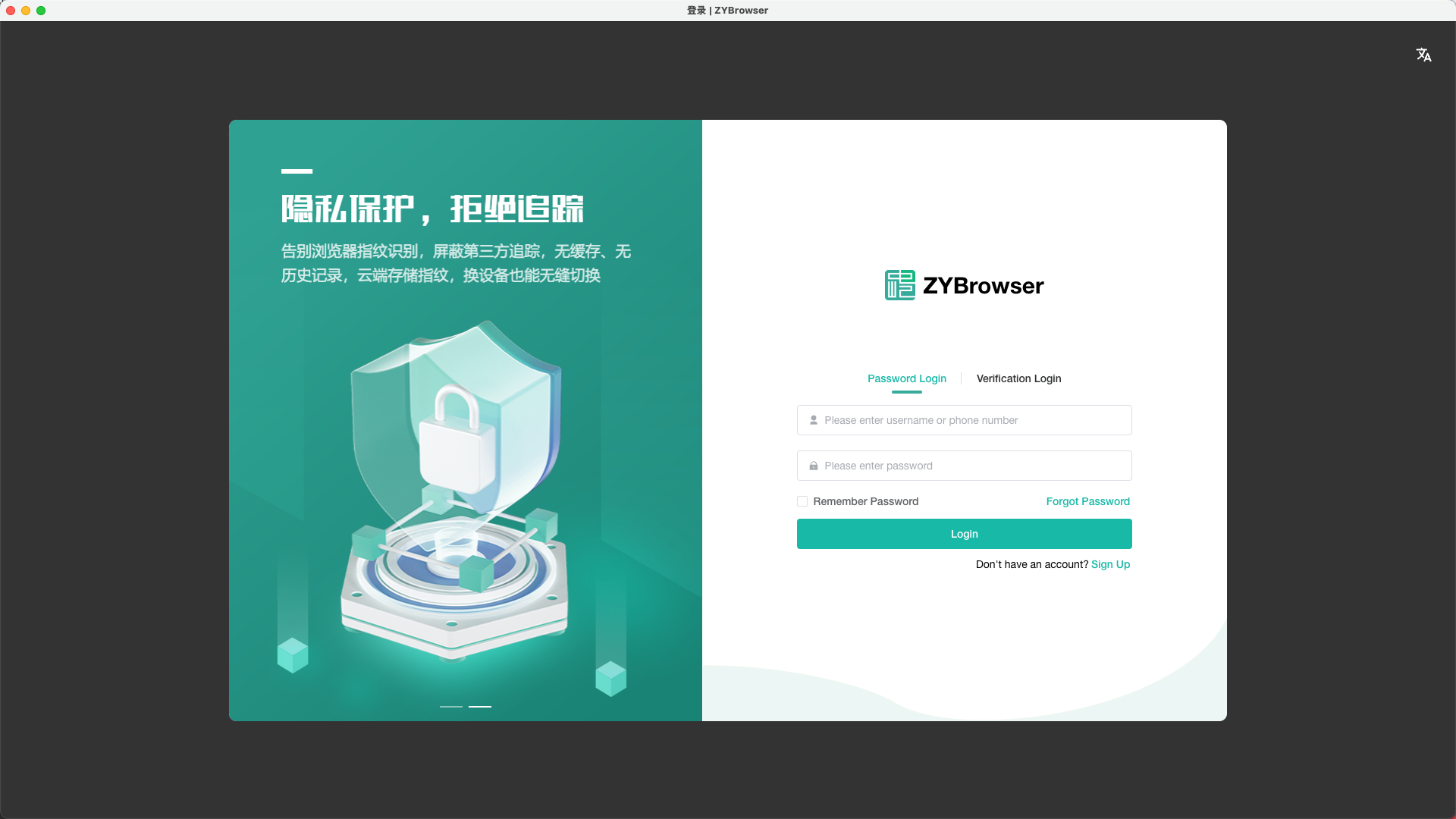
Step 2: Select the login method
At the top of the right login area, there are two tabs: "Password Login" and "Verification Code Login" (the default might be one of them). Click to switch according to your needs:
- Password login: Suitable for users who are accustomed to logging in with a fixed password;
- Verification code login: Suitable for scenarios where login is needed temporarily or when it is inconvenient to enter the password (requires receiving a verification code via mobile phone).
Step 3: Enter login information
Based on the selected login method, fill in the corresponding information (the text in the interface input boxes is exactly the same as the images):
Method 1: Password login
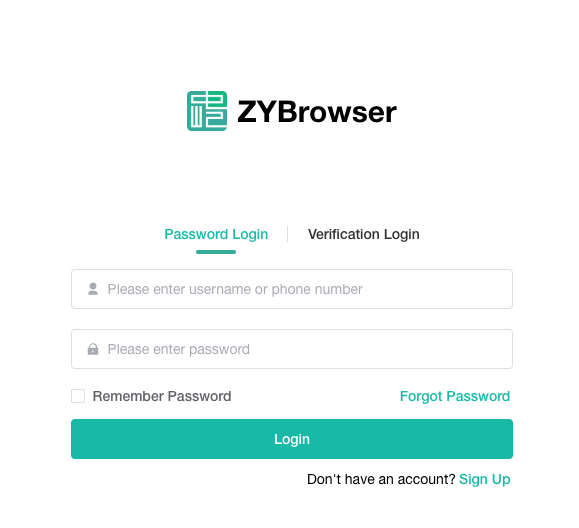
- In the "Enter Account or Mobile Number" input field, enter the account (or the bound mobile number) used during registration;
- In the "Enter Password" input field, enter the login password set during registration (if you forget the password, you can click the "Forget Password" link and reset it via your mobile phone/email).
Method 2: Verification Code Login
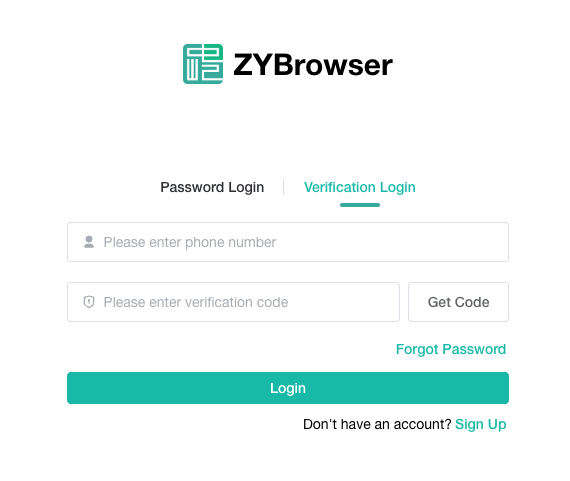
- In the "Enter Mobile Phone Number" input field, enter the mobile phone number bound during registration;
- Click the "Get Verification Code" button (if no SMS is received, check if the phone is blocking it, or re-send it after 60 seconds);
- In the "Enter Verification Code" input field, enter the 4-digit verification code received via the mobile phone.
Step 4: Complete the login process
After confirming that all the information is correct, click the green "Login" button (there is a "Forgot Password" link below/right of the button). Once logged in successfully, it will automatically redirect to the main interface of the browser, and you can start using the core functions such as privacy protection and multi-account management.
Announcements
- Safety Reminder: If you lend the device to someone else for use, it is recommended to uncheck the "No Login Required" option to prevent the leakage of account information;
- Login Exception: If you receive the prompt "Incorrect account or password", please check if the input is correct; if you receive the prompt "Verification code expired", please re-obtain the verification code.
By following these steps, you can quickly log in to ZYBrowser and set the no-login time according to your needs, balancing convenience and privacy security. If you have any other questions (such as forgetting the password, expiration of no-login time), you can click "Forget Password" on the login interface or contact the online customer service on the official website for support.