
Before learning about custom process steps, it is necessary for everyone to become familiar with some terminology.
1. Object
Objects store data in the form of {key: value}. As shown below, we can use an object to represent a person's information. In this object {...}, "name", "age", and "gender" are keys, and "Xiaozhang", "25 years old", and "male" are values.
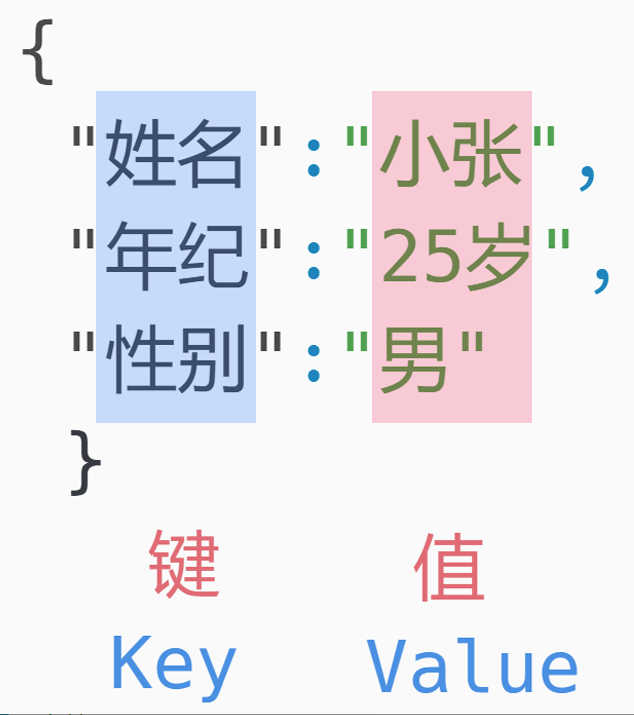
As shown in the figure below, there are two objects, each representing the information of two individuals.

2. Array
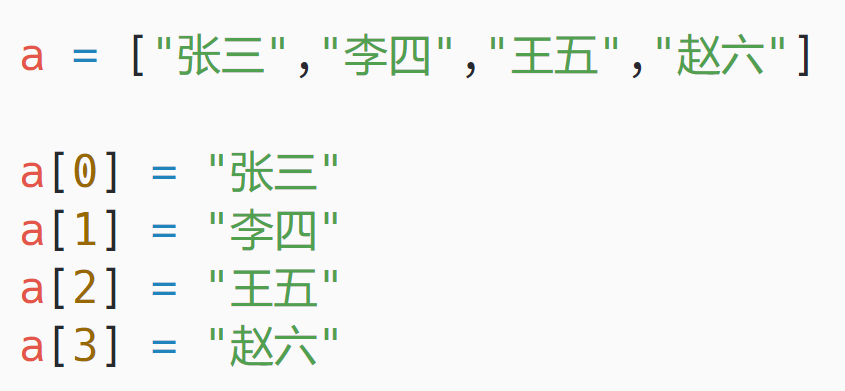
An array is an ordered collection. Let's first look at a simple array. As shown below, the array contains four elements. The subscript of the array starts from 0. a[0] represents the first element of the array, a[1] represents the second element, a[2] represents the third element, and so on.
The elements in an array can also be objects. As shown below, there are 3 objects in an array.

As shown in the figure below, the values of a[0], a[1], and a[2] are:

Now, you should have a clear understanding of the concepts of arrays and objects. If you are still not familiar with them, I suggest you search for relevant knowledge on Google. Keywords to search for include: JavaScript arrays, objects
3. Selector
What is the purpose of a selector?
As the name suggests, choosing means picking out what you want from a pile of things. And a selector is to pick out the element we want from a rich set of web elements.
Actually, the term "selector" originates from Cascading Style Sheets (CSS) in web development. Don't panic, I'm not asking you to learn programming and write code here. Instead, I'm asking you to use CSS selectors to locate elements (hereinafter referred to as " selectors" for ease of explanation).
For example, you want to use RPA to like a certain post. There are 10 posts on the homepage, and only the fifth post is the one you want to like.
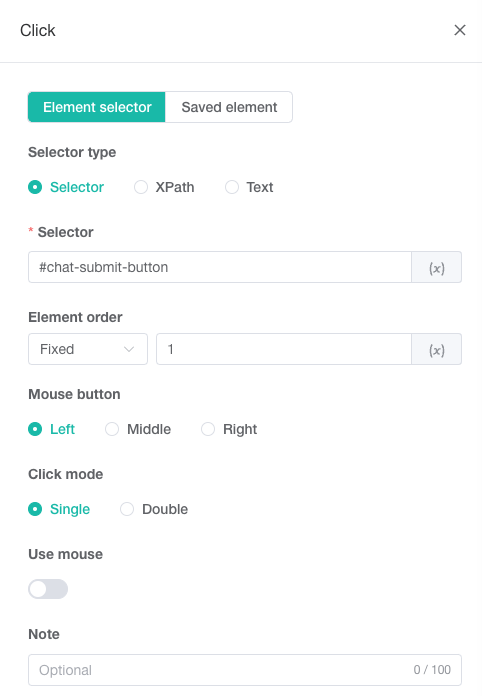
Firstly, we need to locate the "Like" button of the fifth post through a selector, and then click it. If there is no selector, RPA will not know which element of the webpage to operate on.
Case 1: Fill in the selector #chat-submit-button, and RPA will click on the element containing
4. Variables
A variable is a container that can be used to store text, data, web page elements, and so on. For example, if you obtain a piece of text on a web page: "I love zhongyi!", and store it in variable A. The next step is to enter this text into an input box, and you only need to call variable A.
In RPA, there are three types of variables: system variables, global variables, and variables declared within the process; among them, system variables are separately listed as "system variables", while global variables and variables declared within the process are collectively referred to as "process variables".
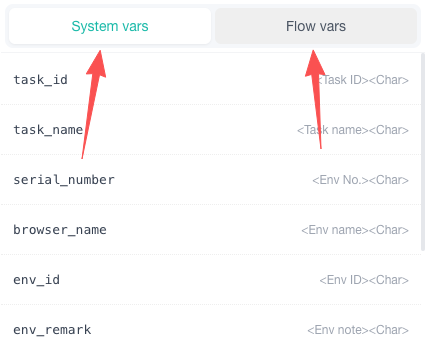
System variables: Generally refer to information related to the environment or tasks, such as task IDs, environment notes, and other content;
Global variable: refers to the variable declared in the start node, which affects the entire process and can also be edited in the "Process Details";
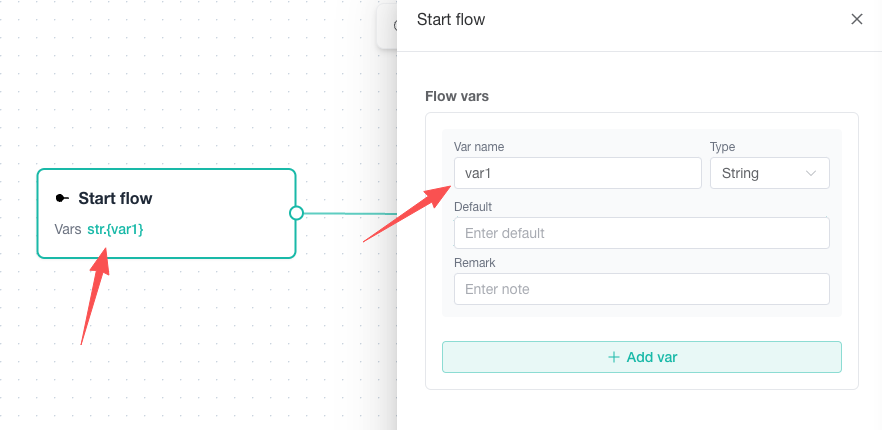
Variables declared in the workflow: Similar to the operation options, [Focused element], [Element Data], and [For Loop Element] can all store the obtained web page elements as variables for later steps to call.
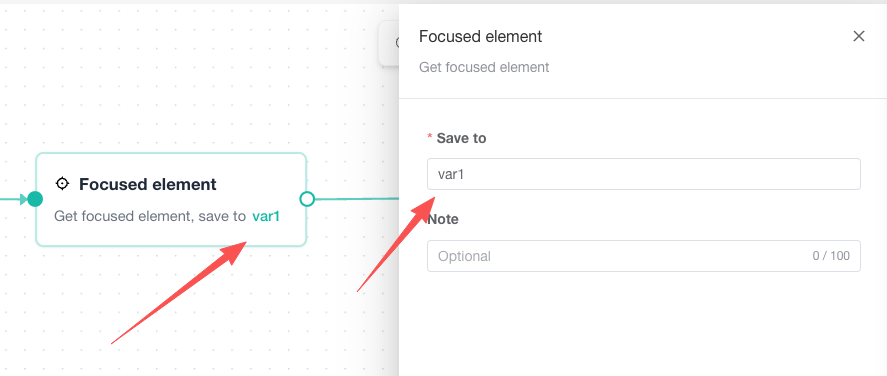
5. IF condition (conditional judgment)
Have you ever encountered such a scenario? On the login interface, we need to enter our password and log in to our account. If the password input box does not appear, we refresh the webpage. That is, when the condition is met, we perform step 1; otherwise, we perform step 2. In such scenarios, we can use an "IF condition" to make judgments, and based on the judgment result, execute the corresponding step. As shown in the figure below:
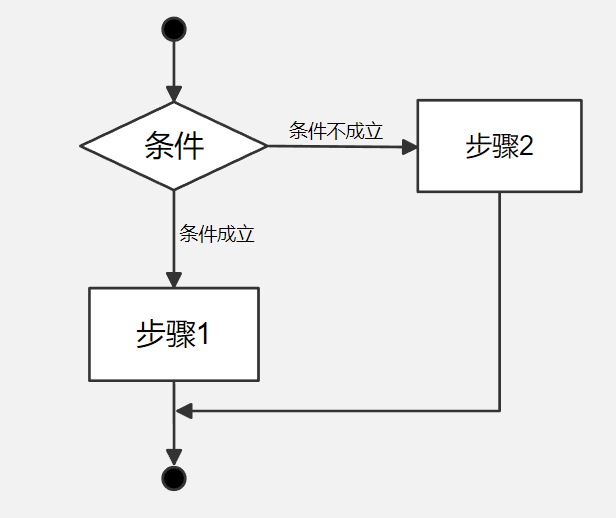
[IF condition] is to judge a variable or compare it with the input result: variable exists/does not exist, contains/does not contain, equals/does not equal... When the condition is true, execute step 1; otherwise, execute step 2, or do nothing and continue to the next step.
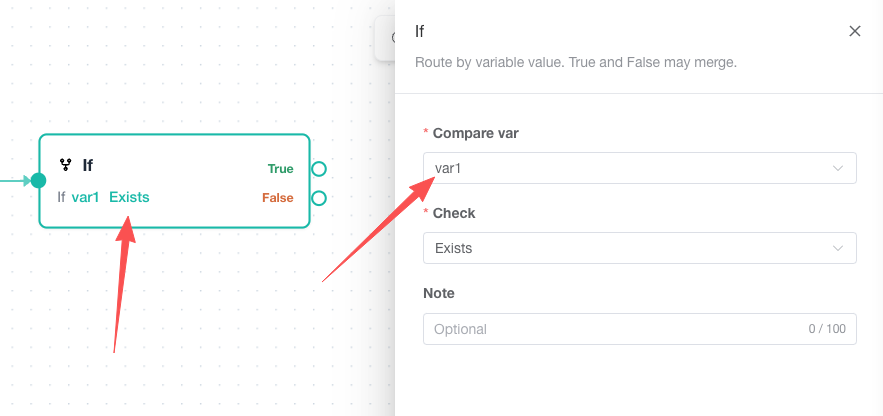
6. Loop conditions (For, While)
The so-called loop refers to the repetition of a certain action. For instance, liking multiple posts, retrieving all comments under a certain product and storing them in a document, scrolling through pages, clicking on multiple images, and so on. When you encounter such scenarios, you need to consider using a for loop to assist you in performing mechanical and repetitive tasks.
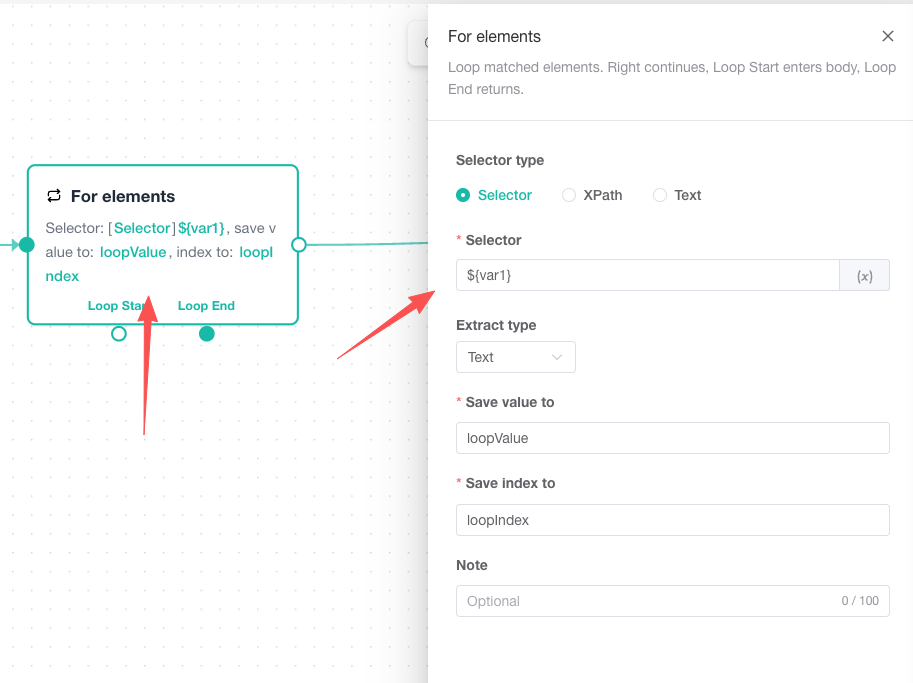
In the Joyee Fingerprint Browser, there are three types of for loops and one while loop, namely [For Loop Element], [For Loop Count], [For Loop Data], and [While Loop]. These four operations have different application scenarios, which will be explained in detail later. Here, I just give you a brief introduction.