1. Preparation work: Log in to the Zhongyi browser client, enter the RPA automation page, first create the workflow and copy the workflow ID
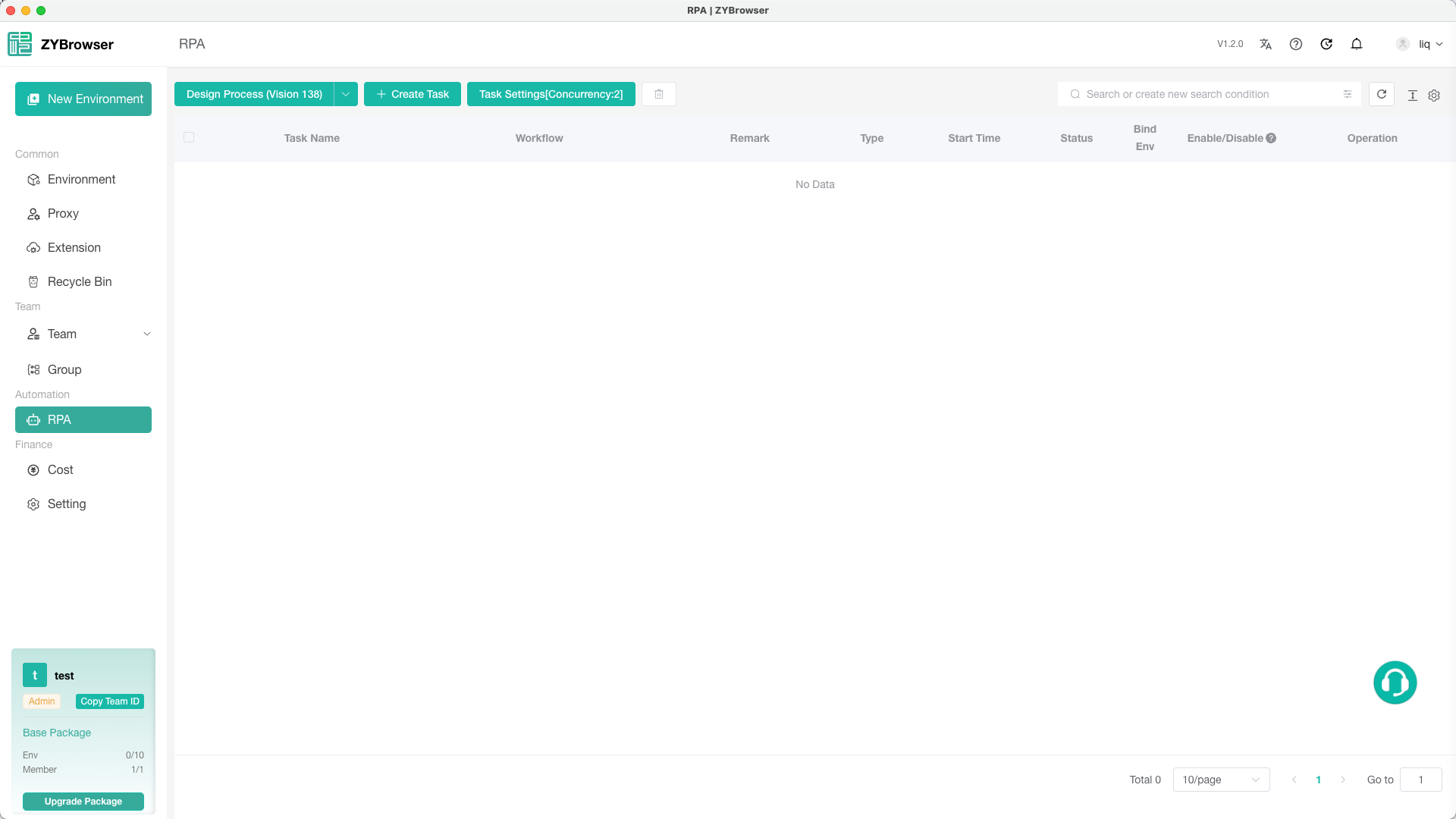
2. Click the "Create Task" button on the top.
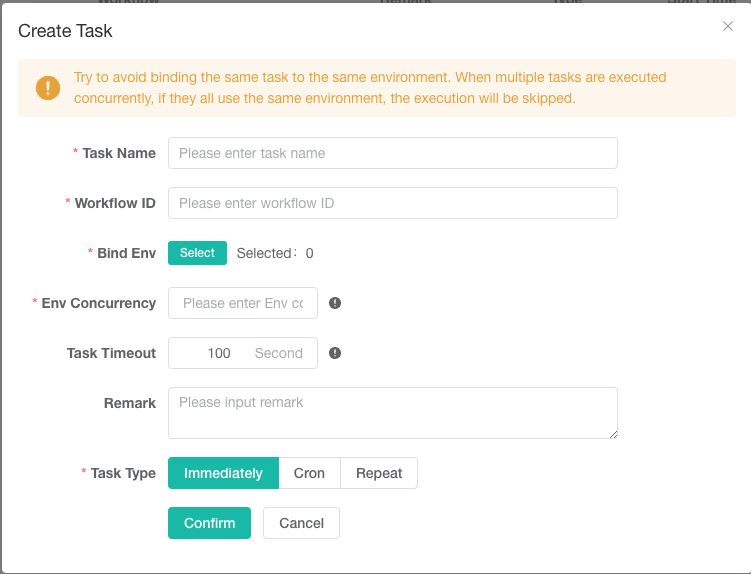
- Fill out the form as required
- Explanation of each item:
- Task Name: This is the name of the task, fill it in yourself;
- Workflow ID: The ID of the created workflow, it cannot be randomly filled or modified;
- Binding Environment: After clicking the button, select the environment where this RPA task will be executed;
- Window Concurrency: Indicates how many environments will be opened simultaneously to execute this RPA task. Please adjust it appropriately according to your computer configuration;
- Task Timeout Time: The interval in seconds after which each environment will automatically close after being opened. Fill 0 to indicate no automatic closing.
- Mode of execution:
- Immediate Task: Tasks that are executed immediately after creation;
- Scheduled Task: Tasks that are executed at a specified time point (please do not close Zhongyi Browser before the task execution);
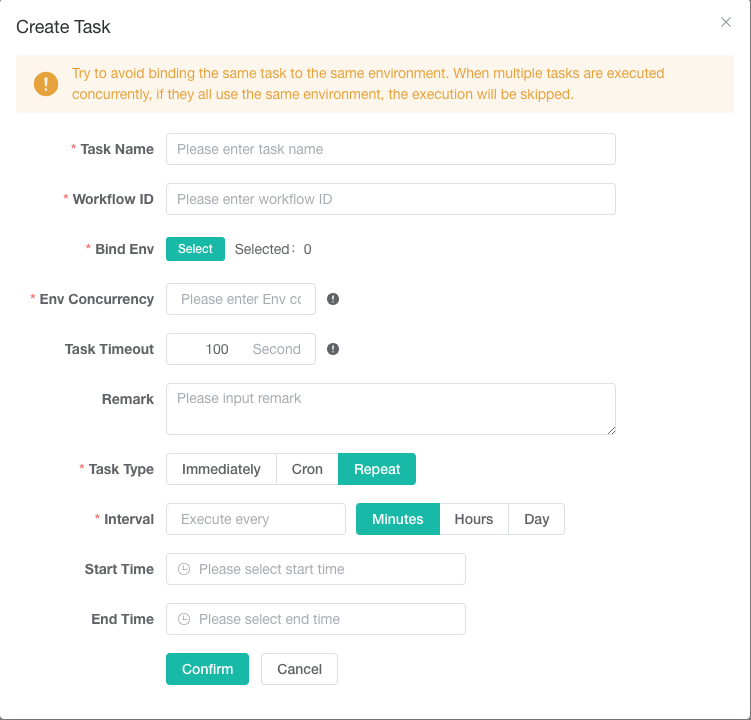
- Recurring Task: Set the start and end time of the task and set the repetition cycle for the task execution. See the figure below: