
1. Preparation work: Log in to the RPA automation platform
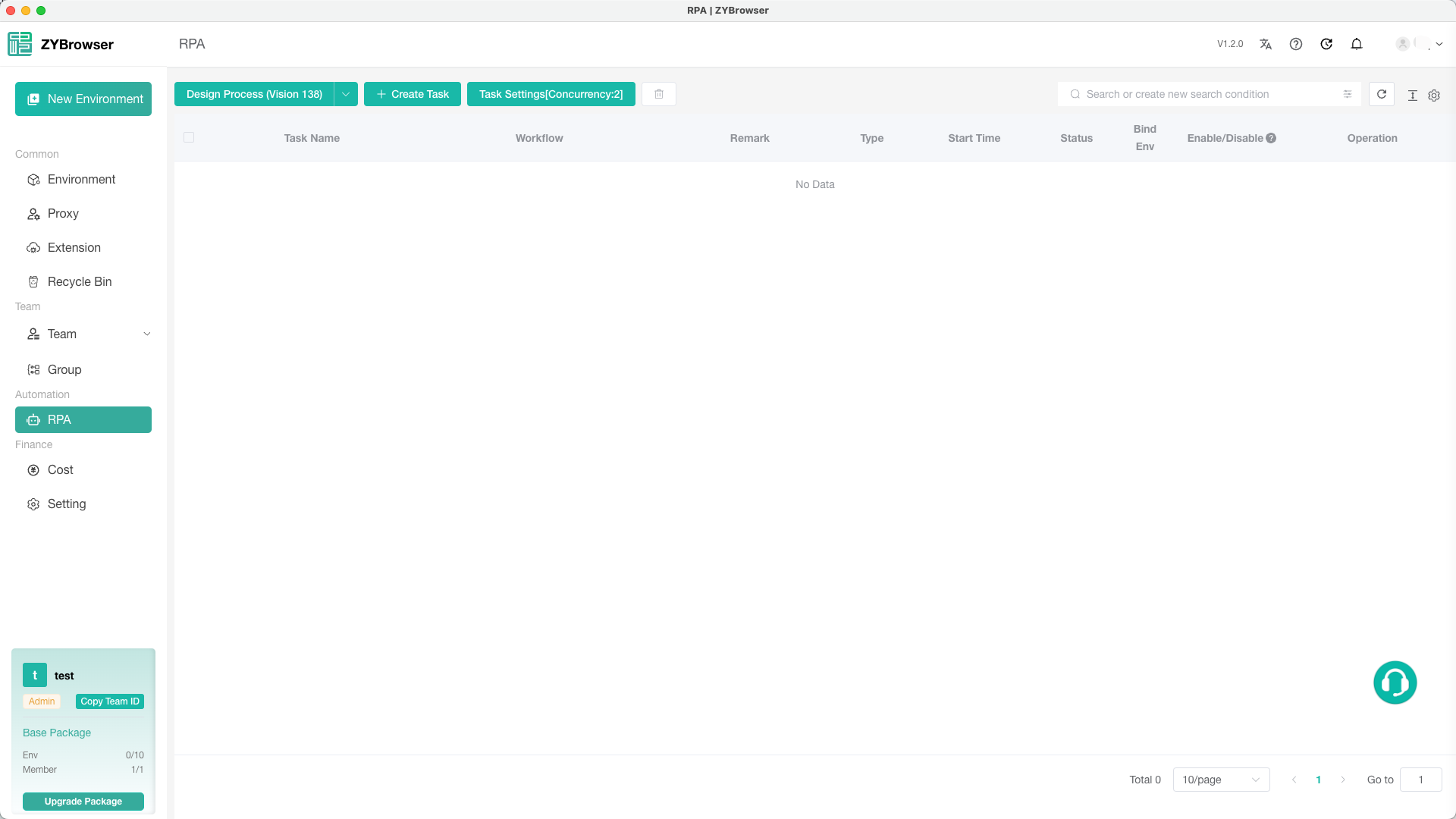
- Open the ZYbrowser and navigate to the "RPA Automation" module in the left navigation bar (as shown in the figure).
2. Start the RPA Designer environment
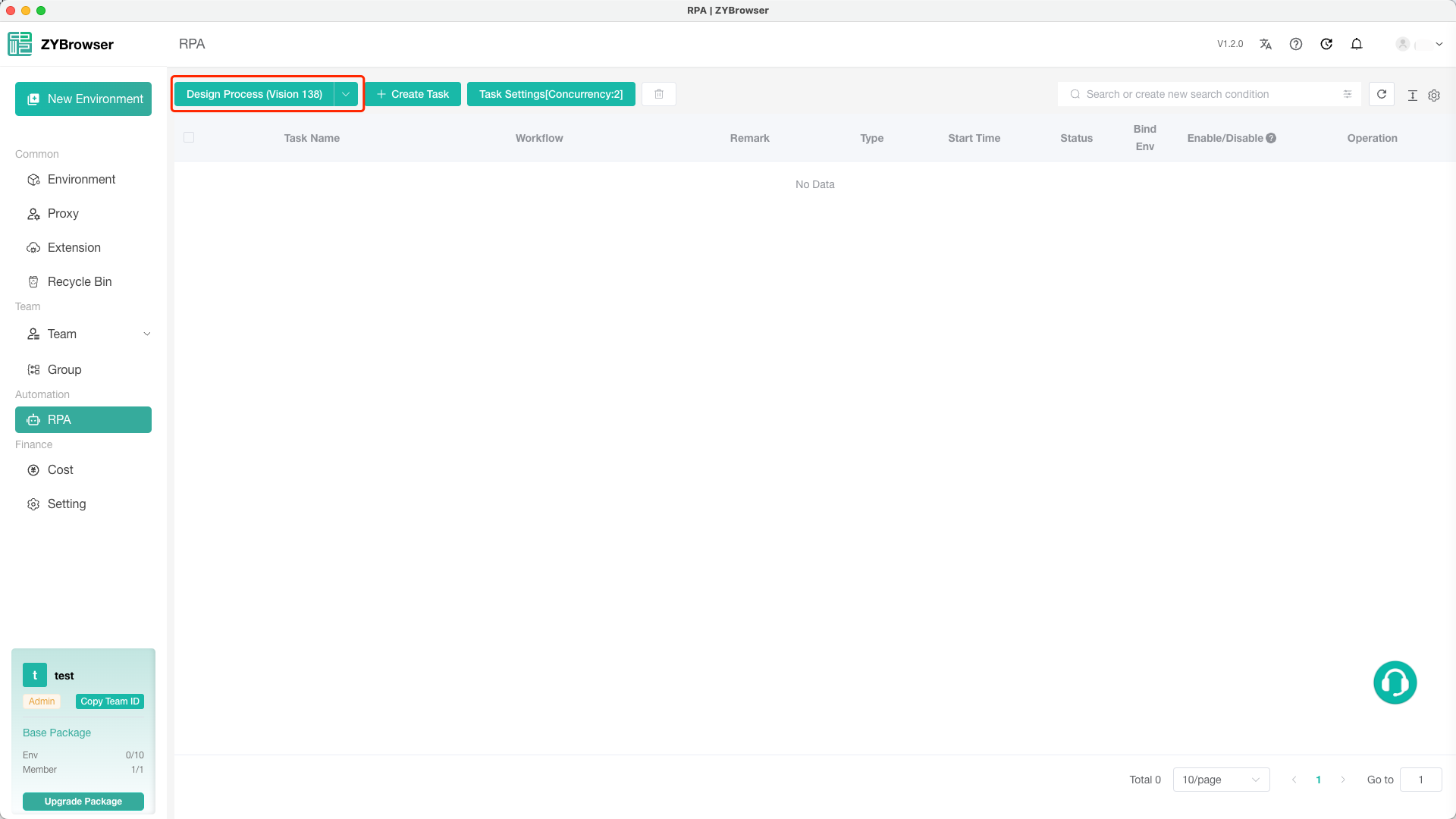
- In the RPA automation page, click any of the "Enter Process Design" buttons (as indicated by the red box in the figure).
- If the selected kernel version has already been installed:
- After clicking, the system will automatically open two windows.:
- Specialized browser environment for RPA designer (based on Zhongyi browser core, with the Automa toolchain pre-installed);
- Automa Extension Interface (the visual process editor that pops up on the right)。
- The browser will automatically redirect to the starting page of the RPA usage tutorial. Please carefully read the relevant procedures before proceeding with the subsequent operations.。
- After clicking, the system will automatically open two windows.:
- If the selected kernel version is not installed, it will first download the corresponding kernel version. Once the download is successful, the RPA Designer will be opened.。
- If the selected kernel version has already been installed:
3. Create the first automated process
Step 1: Create an automated process
- In the Automa extension interface, click on "New Workflow".
- Enter the process name (for example: "Open Baidu Search with Zhier Browser"), and click on "Add".
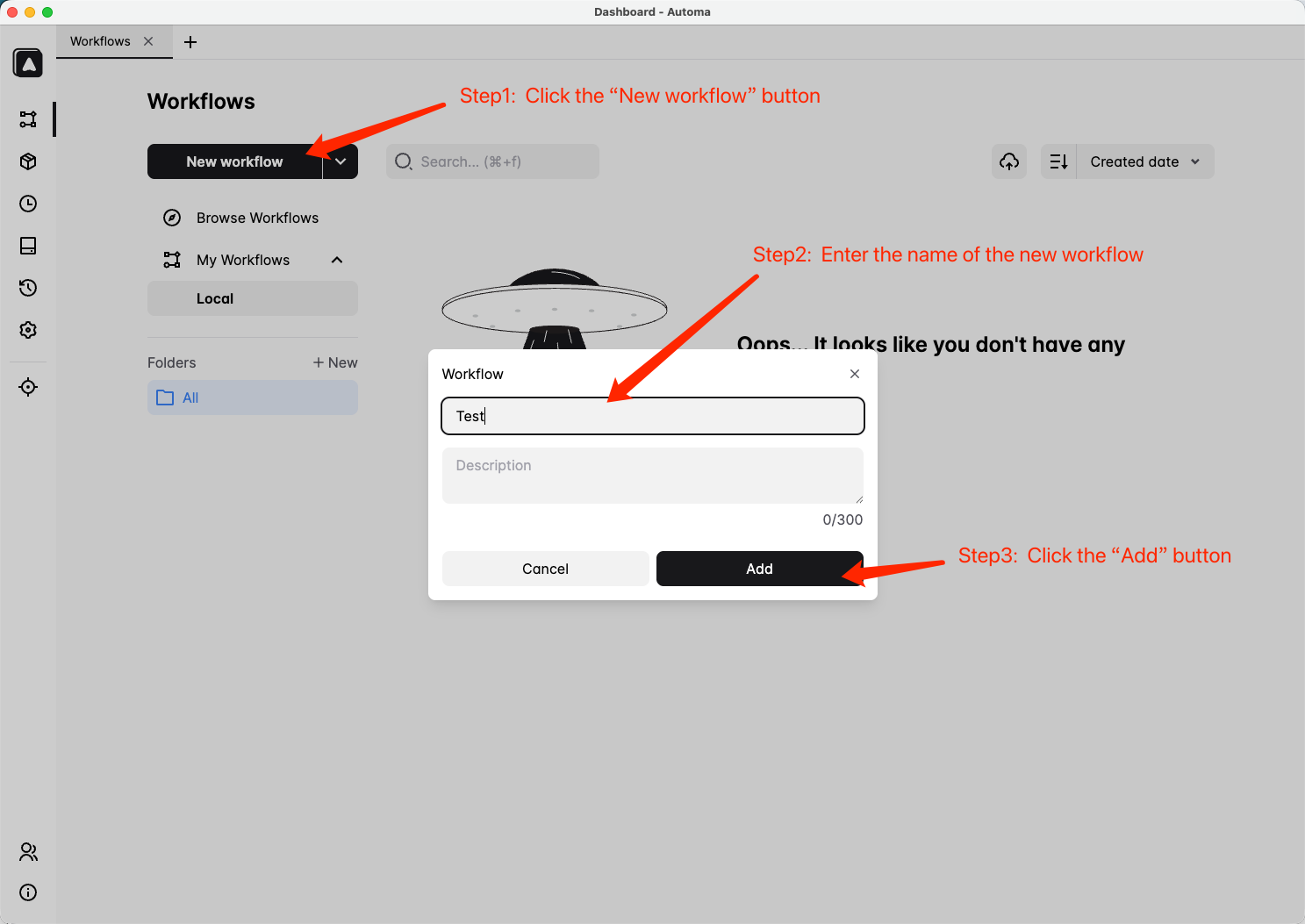
Step 2: Edit Workflow (Core Function)
- After clicking the "Save" button, you will enter the interface for editing the workflow. On the left side of the interface is the optional operation area, and on the right side is the process editing area.
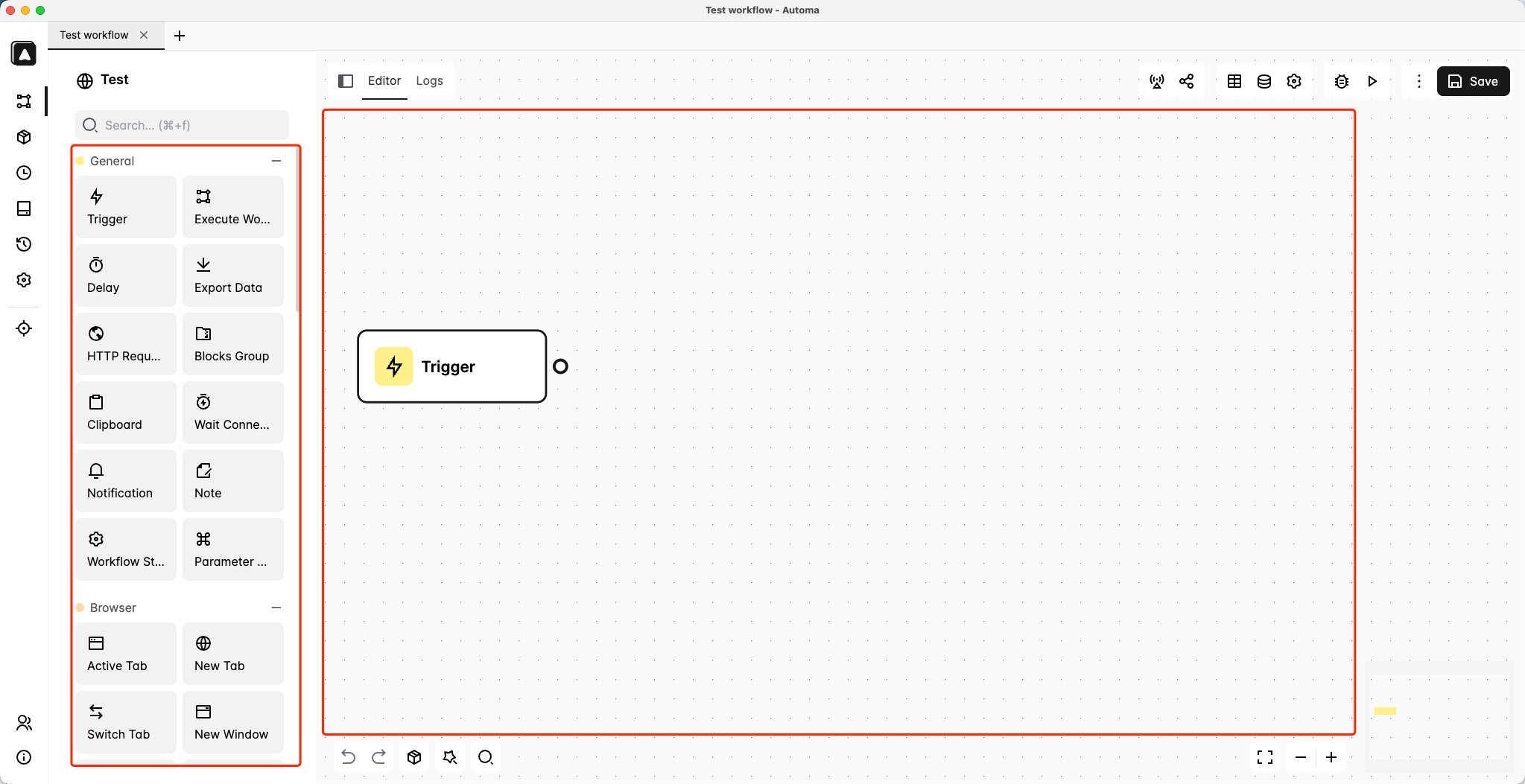
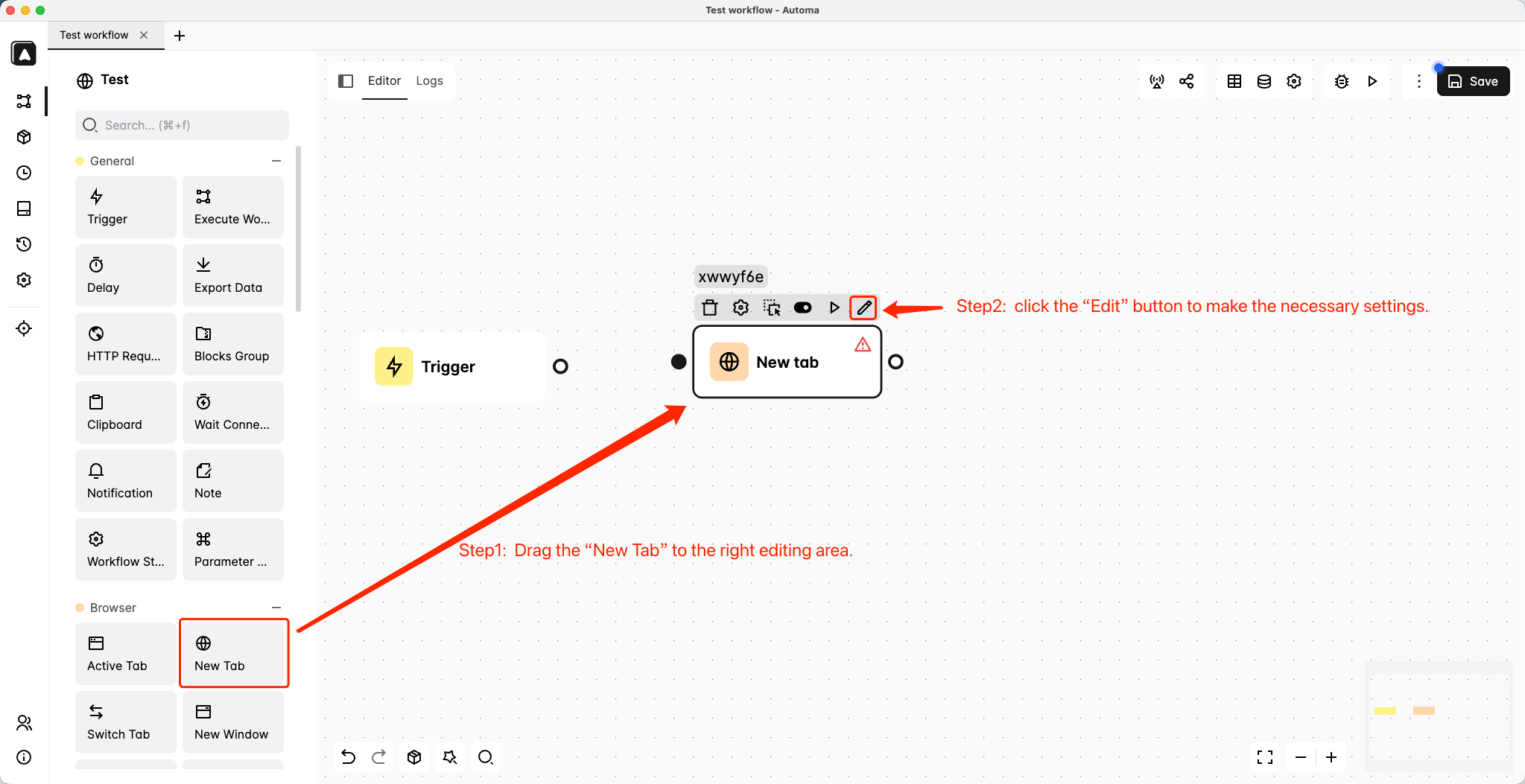
- Drag the newly created tab from the Browser module to the left editing area, and then click on the edit option to make the settings.
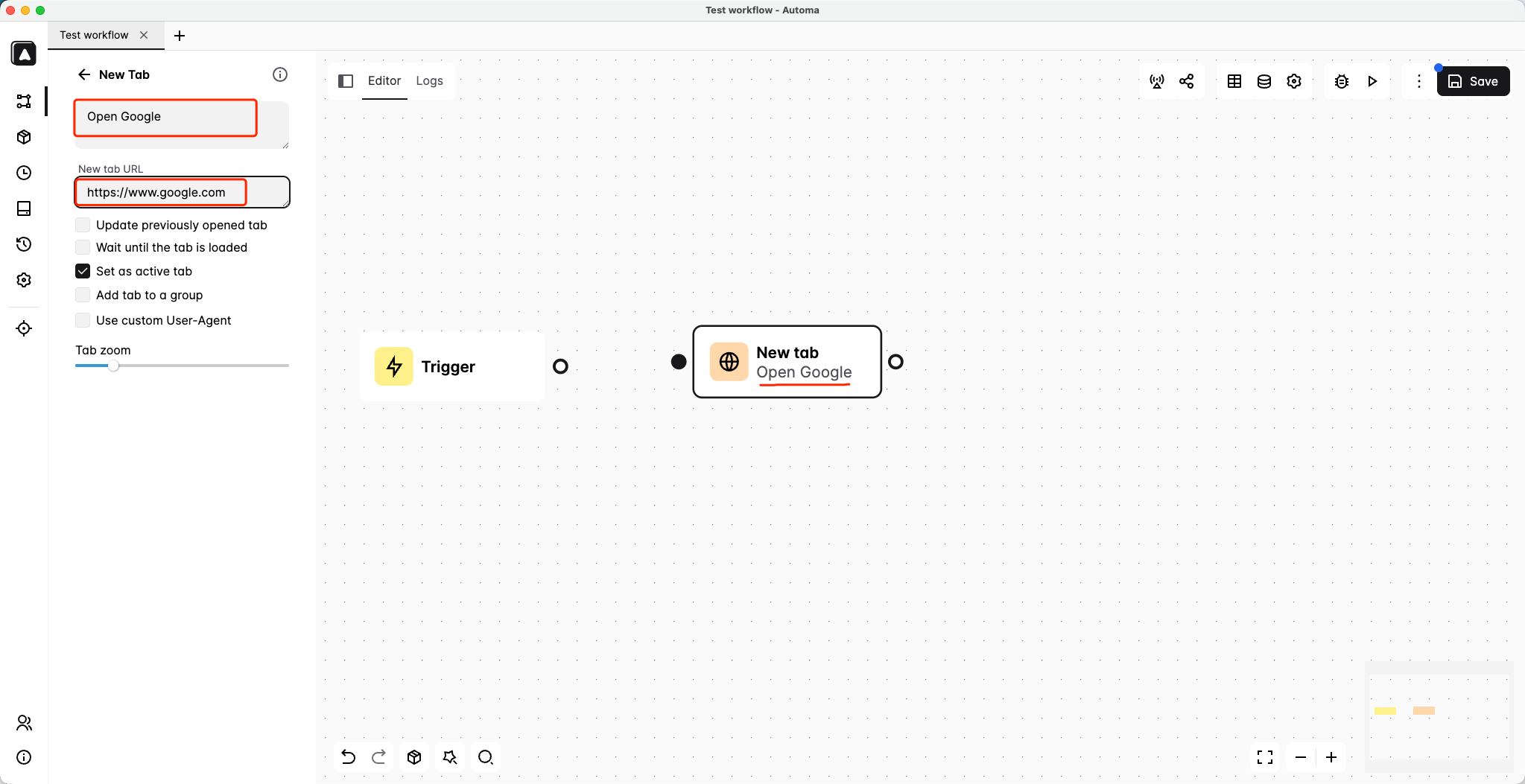
- Enter the relevant information in the editing box on the left.
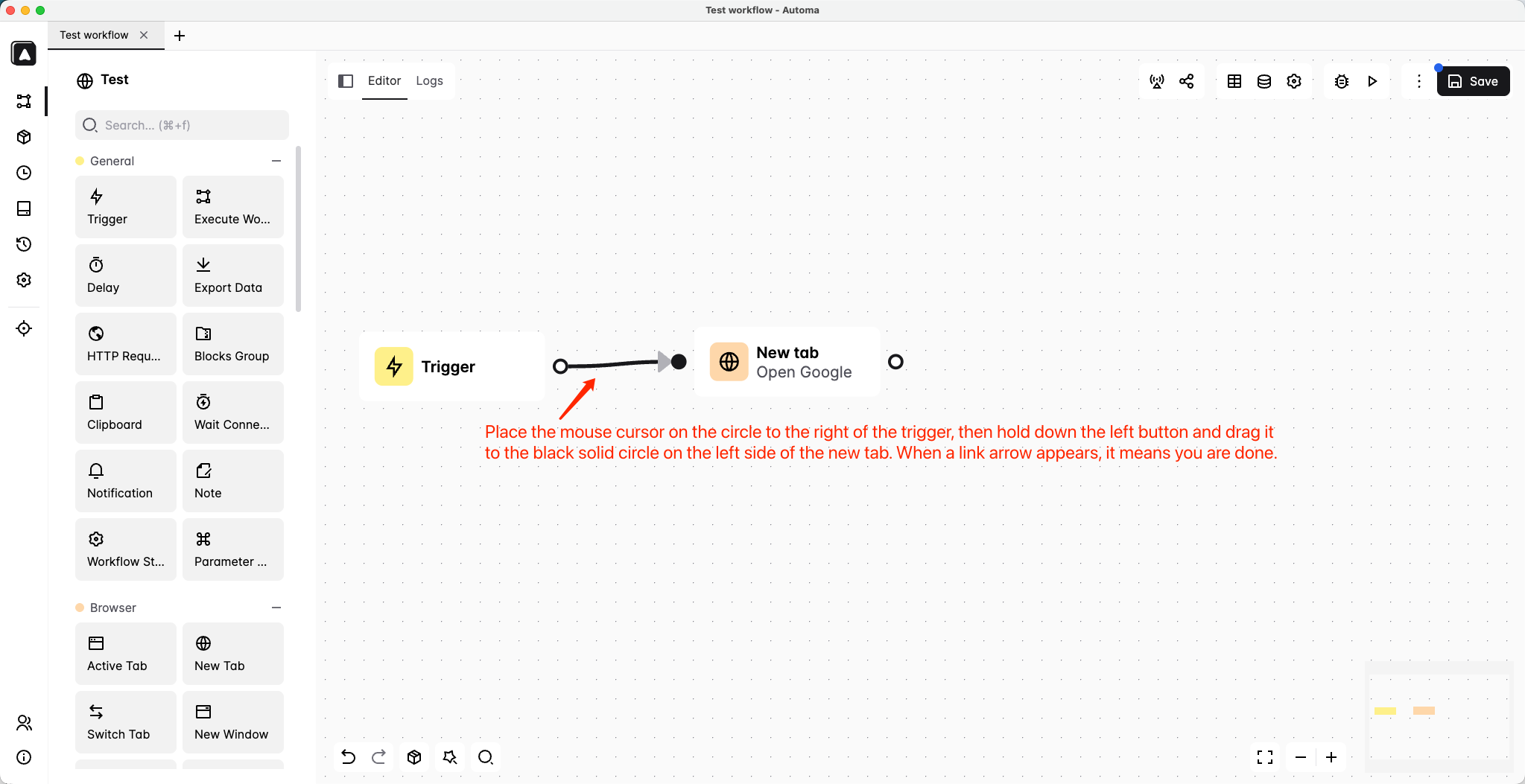
- Connect the trigger to the newly created tab page
Step 3: Save and test the workflow
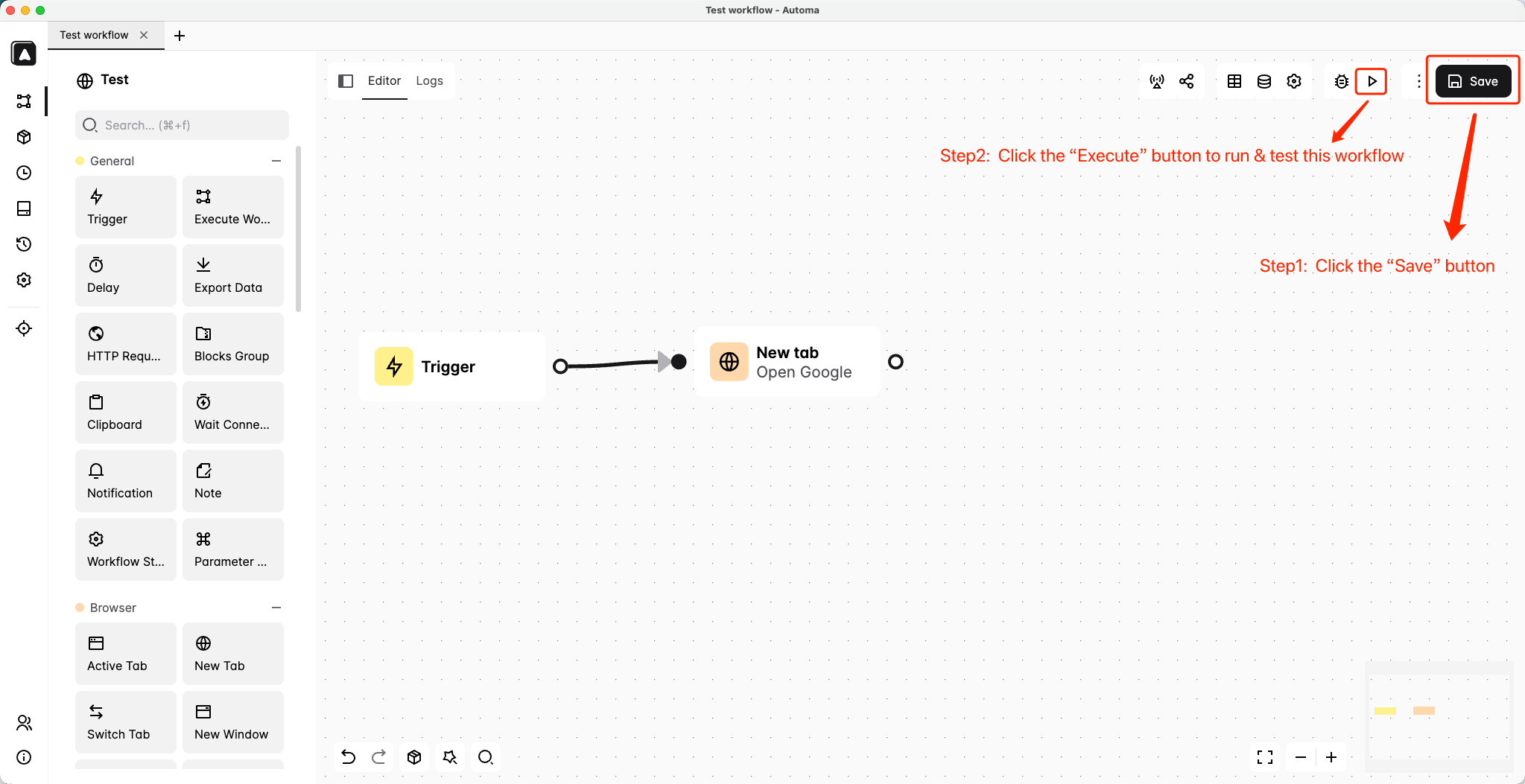
- After completing the editing, you can click the "Save" button on the top right to save the document. Once saved, click the "Run" button on the left, and the workflow will start to execute. If there are any issues with the running process, you can make immediate modifications (it is recommended to edit and run tests simultaneously to ensure that each step is correct).
4. Export and Application Scripts
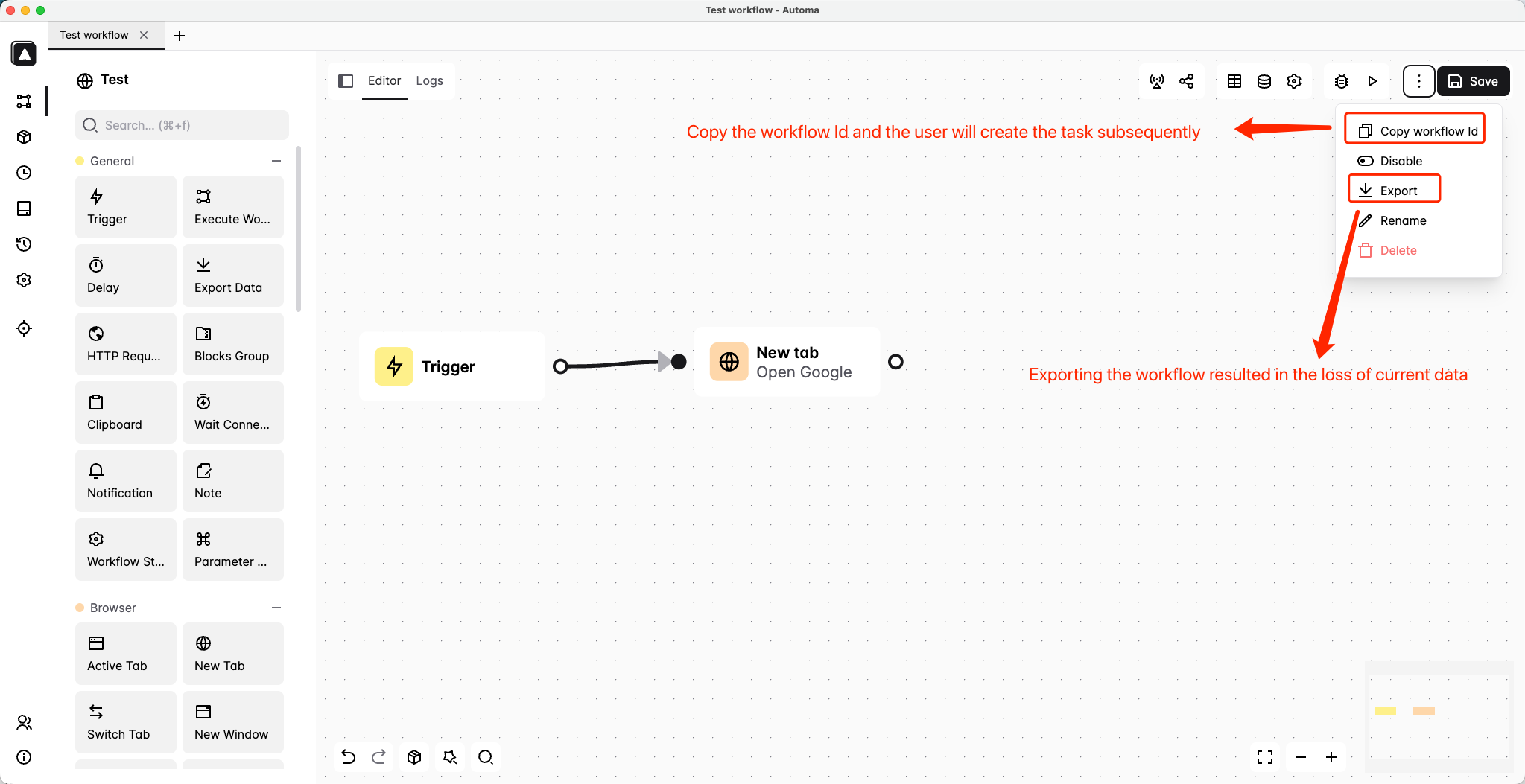
Export as an independent script
- Click the "Export" button, and select the format (such as .json or .automa), then you can download the script to your local device, which is convenient for offline use or sharing with team members.
- To prevent data loss, it is strongly recommended that you export and back up the created workflow.
Deployed to the task list
- Click the "Copy workflow Id" button to copy the saved workflow ID. Then, go to Zhongyi Browser - RPA Automation - Create Task, and paste the workflow ID into the workflow ID box.
5. Summarize
By following these steps, you have successfully created your first automation script based on Automa! Whether it's repetitive form filling, batch data processing, or web information scraping, this tool can significantly enhance efficiency. In the future, you can explore more advanced features (such as API calls, conditional judgments), making RPA truly become your "digital assistant".
With the RPA platform of ZYBrowser, business process automation can be achieved without complex programming. Even beginners can quickly get started!