
Step 1: Display the list of teams
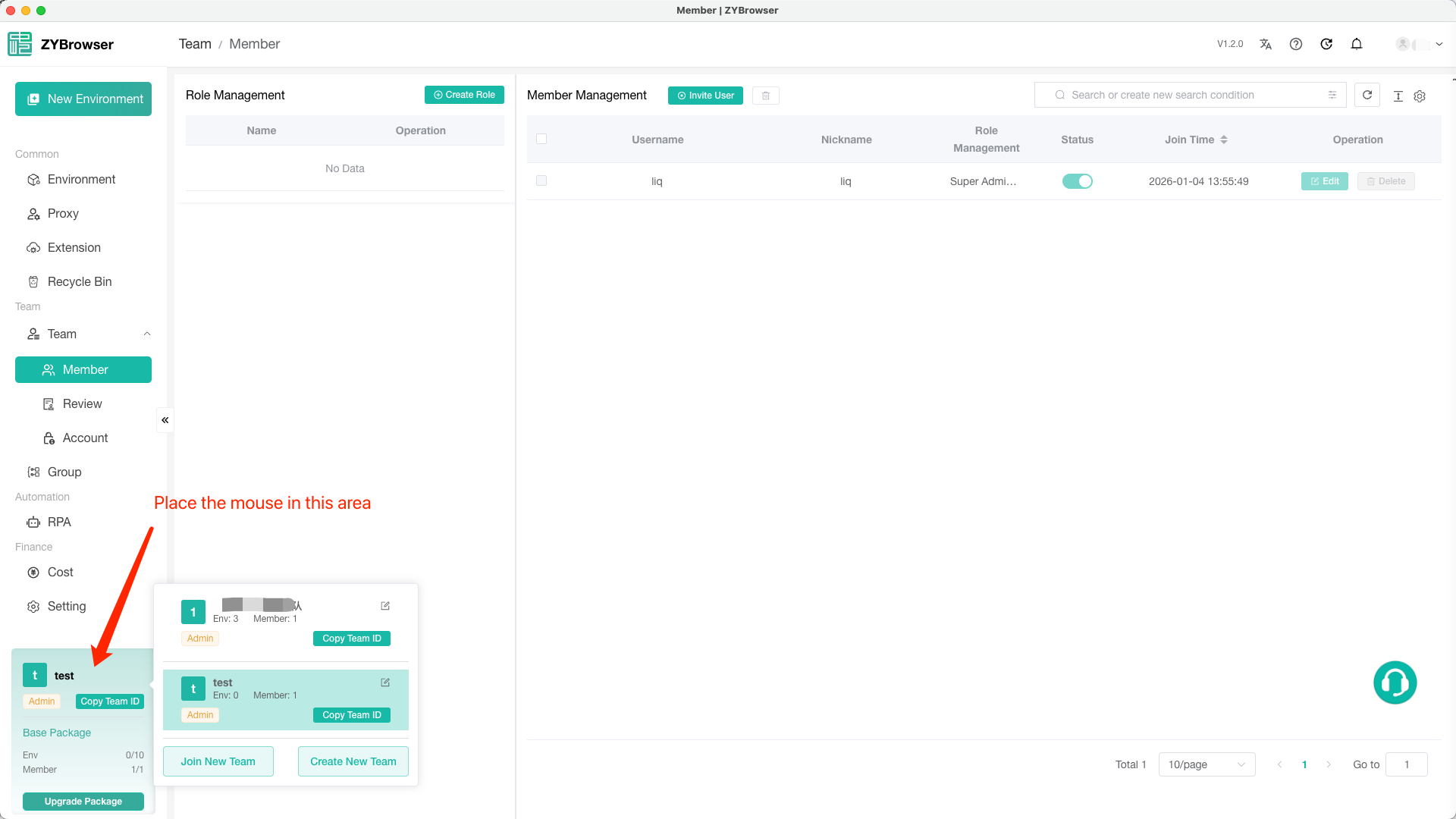
Find the entrance: On the lower left corner of the ZYbrowser interface, locate your team name. Move the mouse to this icon and pause for a moment. A team list will then pop up.
Step 2: Select the target team
View Team Status: In the team list, all the teams you have joined or created will be displayed. The current team you are in will be highlighted.
Click on the Target Team: Find the name of the team you want to switch to in the list, and click the left mouse button to complete the switch.
Step 3: Confirm successful switch
After the switch, the page will automatically refresh or update the top information. At this time:
- The team name/avator in the lower left corner has been updated to the target team;
- In the team list, the original current team has returned to the default style, while the new team is displayed in a highlighted state.
Summarize
By performing these two steps (selecting the list → clicking on the target team), you can quickly switch to the team environment and enhance the efficiency of multi-team collaboration.
If you have any questions, you can always check the "Help Center" at the top right corner of the interface or contact the platform customer service.