
ZYBrowser is a tool dedicated to privacy protection and multi-account management. It supports two independent channels for account registration: web-based and client-based. Below, we will provide detailed explanations of these two registration methods. After completing the registration, you can log in and use it.
1. Register directly on the official website
The registration process on the official website is simple and does not require downloading any software. It is suitable for quickly experiencing the basic functions.
Step 1: Visit the official website of the Fingerprint Browser
Open your browser and enter the official website address: https://www.zhongyiliulanqi.com. Then, you will be directed to the homepage of the official website.
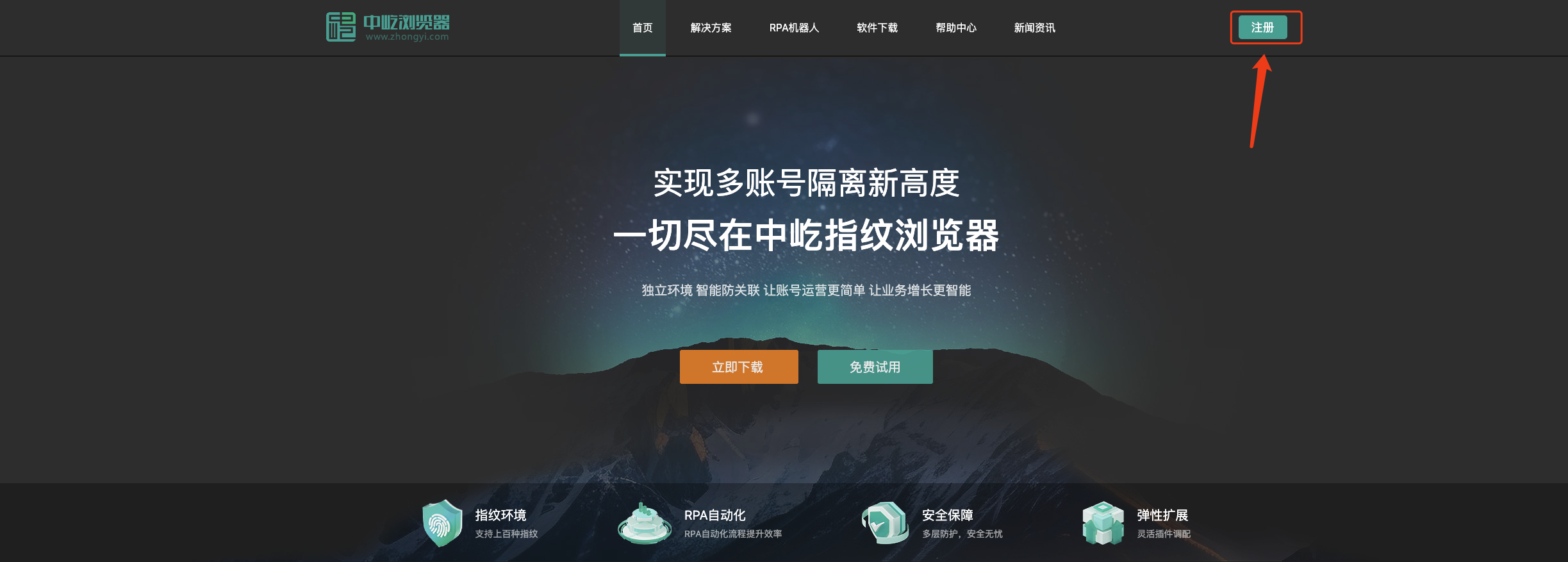
Step 2: Click on the "Register" button
On the top right corner of the official website homepage, locate the prominent "Register" button and click to enter the registration page.
Step 3: Fill in the registration information
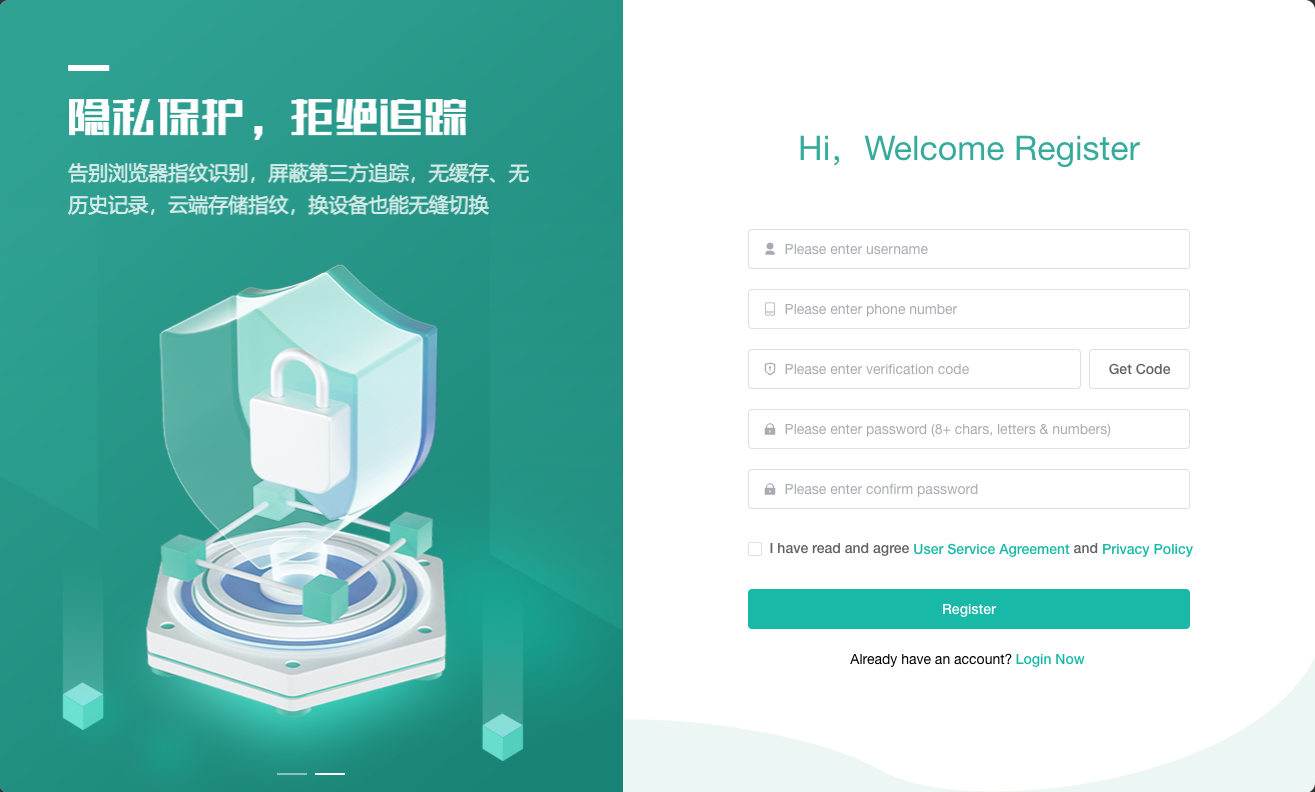
Fill in the form information on the registration page
Step 4: Complete the verification of the code.
- Enter your mobile phone number and click "Get Verification Code";
- Enter the verification code you have received;
Step 5: Set a password and agree to the terms
- Set a login password (it is recommended to include letters and numbers, with a length of at least 8 characters to enhance security);
- Check "I have read and agreed to the 'User Service Agreement' and 'Privacy Policy'" (be sure to read the agreement content to understand the product rules).
Step 6: Submit the registration
After confirming that all the information is correct, click "Register". Once the registration is successful, you can download the Zhongyi Browser client to log in and use it.
2. Software registration within the software itself
Step 1: Download and install the fingerprint browser software
- Visit the homepage of the official website, click "Software Download", and select the corresponding system version (Windows/macOS);
- After the download is complete, double-click the installation package and follow the prompts to complete the installation (the default path is the system drive, and you can customize and modify it).
Step 2: Open the software and navigate to the registration page
After the installation is completed, start the fingerprint browser software. When opening for the first time, it will automatically enter the login interface. Click the "Register Now" button on the interface.
Step 3: Fill in the registration information
The registration page is logically consistent with the official website:
- Enter your mobile phone number, click "Get Verification Code";
- Enter the verification code you have received;
- Set your login password.
Step 4: Complete the agreement confirmation and submission
Check the box for "Agree to the User Service Agreement and Privacy Policy", click "Register", and the software will automatically synchronize the account information to the cloud. After successful registration, it will automatically redirect to the login interface.
Announcements
- Verification Code Reception: If you haven't received the verification code, check if your phone is blocking the text message, or try "Re-send Verification Code" (you can send it once every 60 seconds).
- Password Security: It is recommended to change your password regularly to avoid using weak passwords that are the same as those on other platforms, to ensure the security of your account.
- Registration Exception: If it prompts "This phone number has been registered", it means the account has already been registered. You can directly log in using the password; if you forget the password, click "Forget Password" on the login page and reset it through your phone.
After completing the registration, you can immediately start creating your environment, managing multiple platform accounts, and enjoy a safe and efficient digital life!
If you have any other questions, you can contact the online customer service on the official website for real-time support.