
一、Introduction to basic functions
Introduction: Implement a browser window operation that enables synchronized actions across multiple browser windows, supporting subwindows and plugin pop-up windows, as well as cross-screen synchronization
1. Window Synchronization - Start Synchronization
(1) Quick Start Environment Window
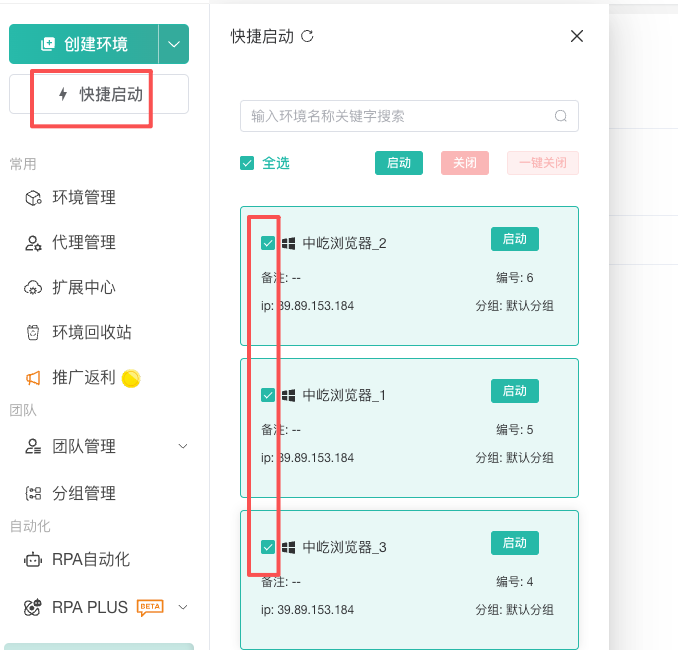
(2) Select the environment window and initiate synchronization (or choose grouping to display the corresponding browser windows under the selected group)
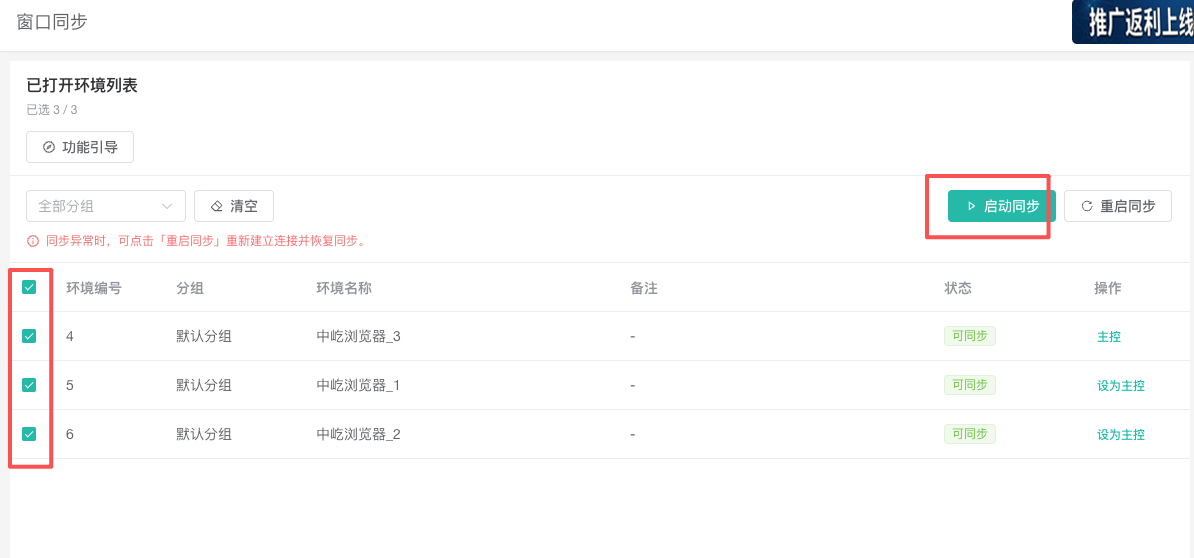
(3) If synchronization is not available, you can click "Restart Sync" to proceed with synchronization
(4) Set as Master: Configure the master control window
(5) Auto Arrange: Automatically arrange the selected browser windows
(6) Desktop Widgets: When enabled, the window synchronization console is displayed on the desktop in widget form
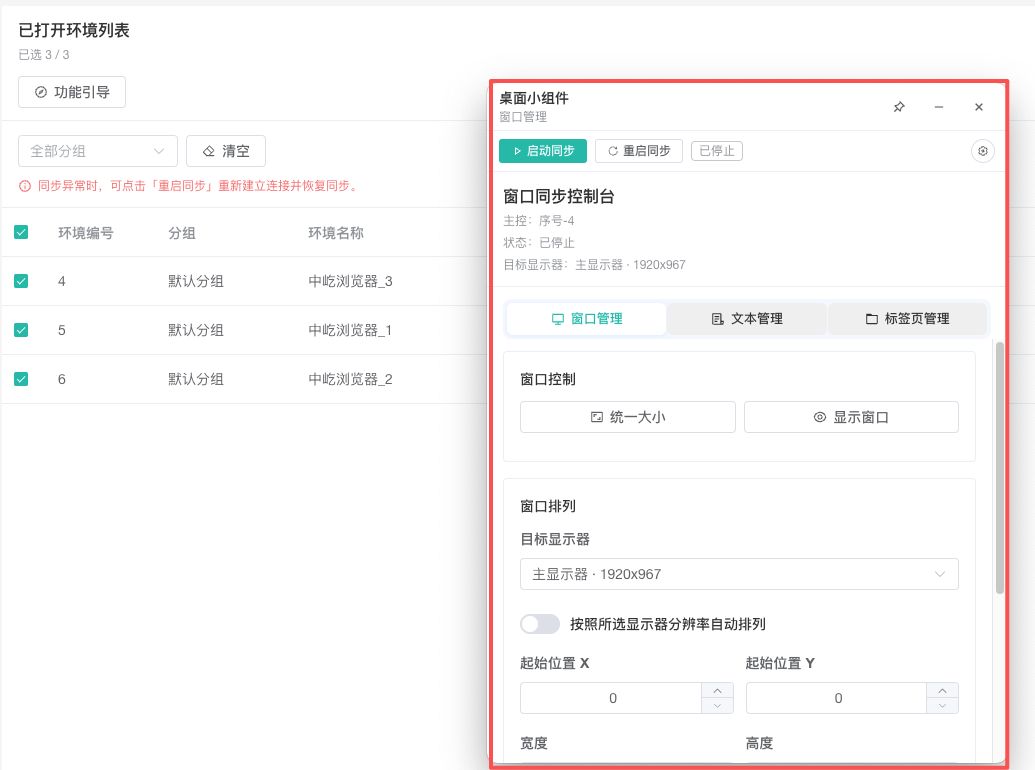
2、Console - Window Management
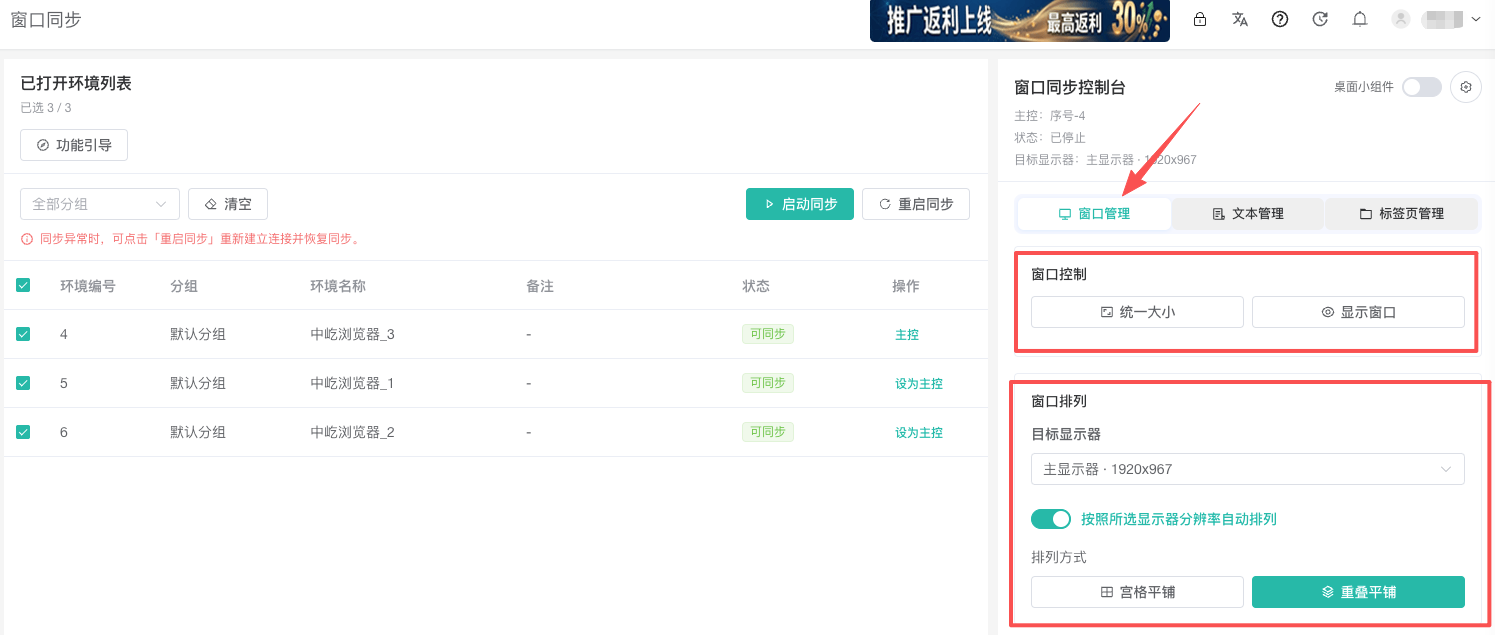
(1) Unified size: Set the selected window to be the same size as the main control window
(2) Display window: Display the selected window
(3) Monitor: Select Screen
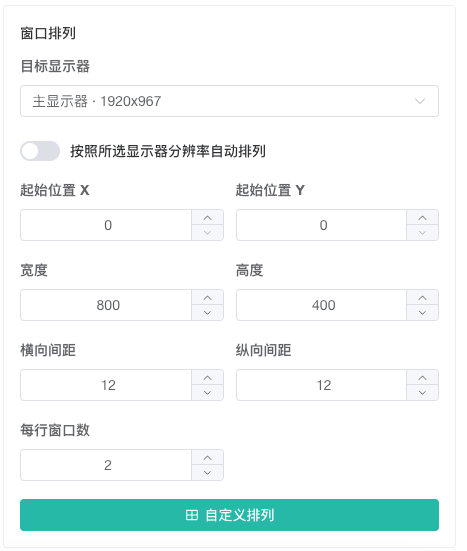
(4) Window arrangement: grid tiling and overlapping tiling
(5) Window Arrangement - Custom Arrangement: The "Automatically arrange selected windows based on the selected monitor resolution" button is closed, allowing you to set the window size and customize the arrangement of windows
3、Console - Text Management
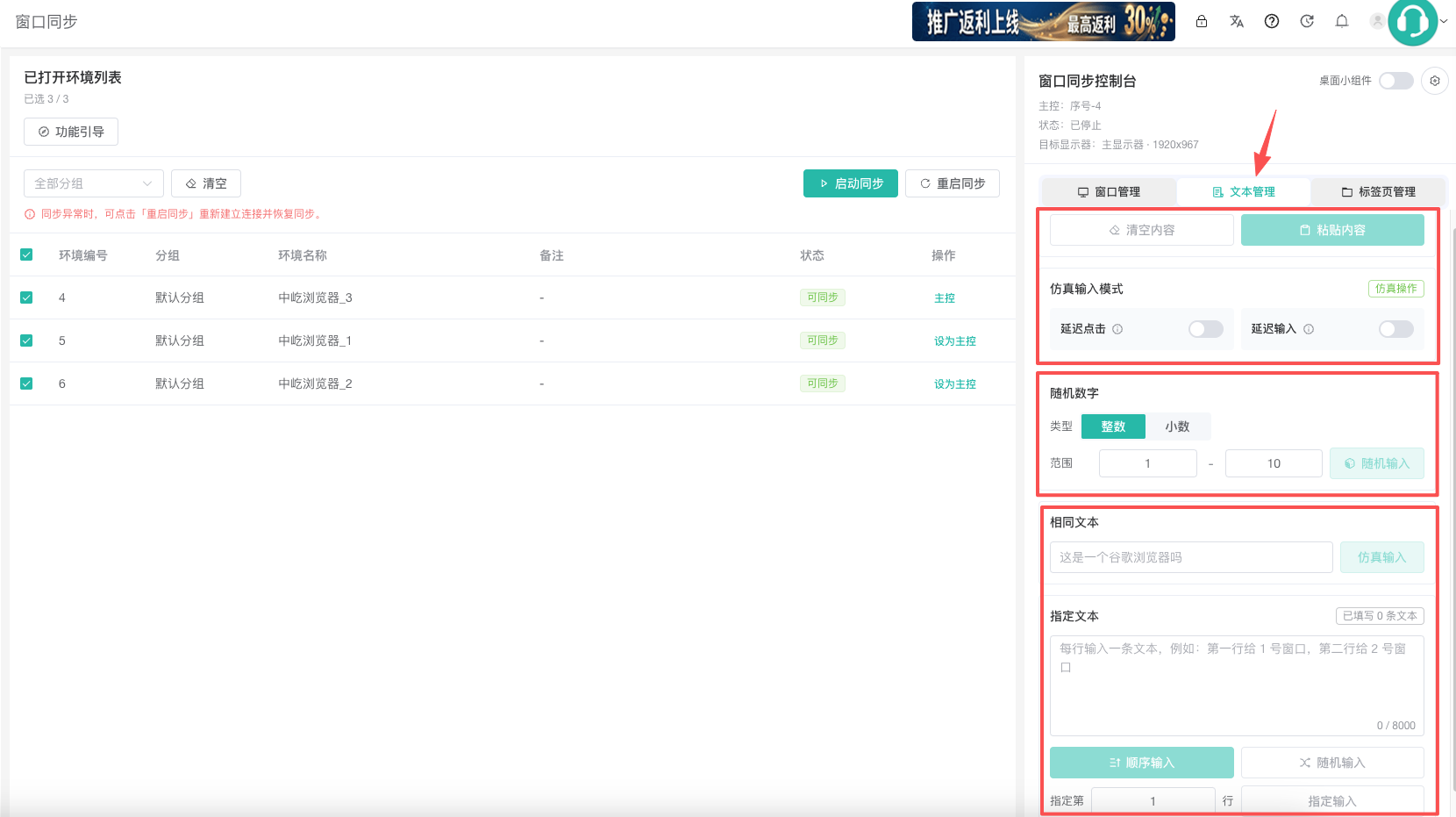
(1) Paste content: Paste the text content into the input box of the main control window, and the controlled window synchronously pastes it
(2) Clear content: Clear the text content in the input box of the main control window, and synchronously clear the controlled window
(3) Simulation operation: Set delayed clicks and delayed inputs to achieve realistic simulation effects
(4) Random Number: Set the range of numbers and randomly enter numerical values in the input box of the synchronization window
(5) Same Text: The main control window and controlled windows simulate inputting the same text in sequence
(6) Specify Text - Sequential Input and Random Input: The main control window controls the sequential or random input of the controlled window to input the specified text
(7) Specify Text - Auto Line Break Function: Supports automatic sequential conversion of multiple lines of text to text sequence numbers
4. Console - tab management
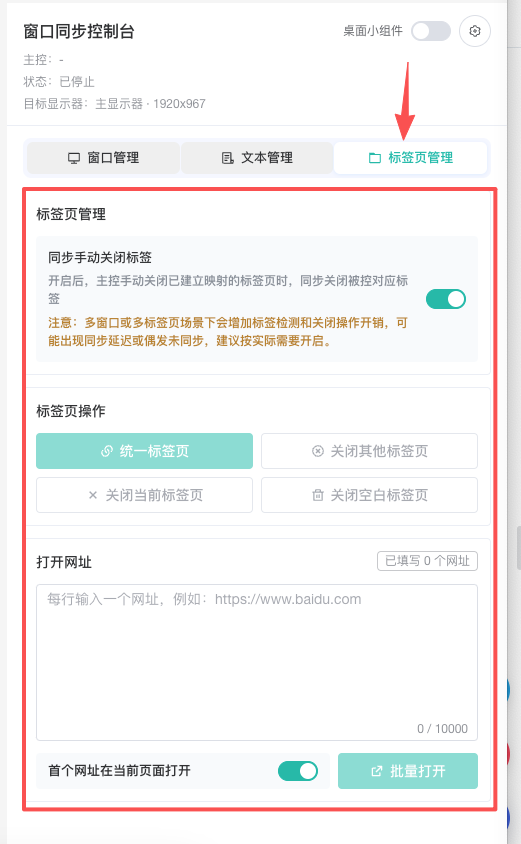
(1) Unified tab: Make the controlled window tab consistent with the main control window tab
(2) Close Other: Close other tabs and keep only the current tab
(3) Close current tab: Close the current tab of the window
(4) Close blank tabs: Close blank tabs in all windows
(5) Open URL - The first URL opens on the current page
(6) Open URL - The first URL is not open on the current page (button to close)
5、Setting up
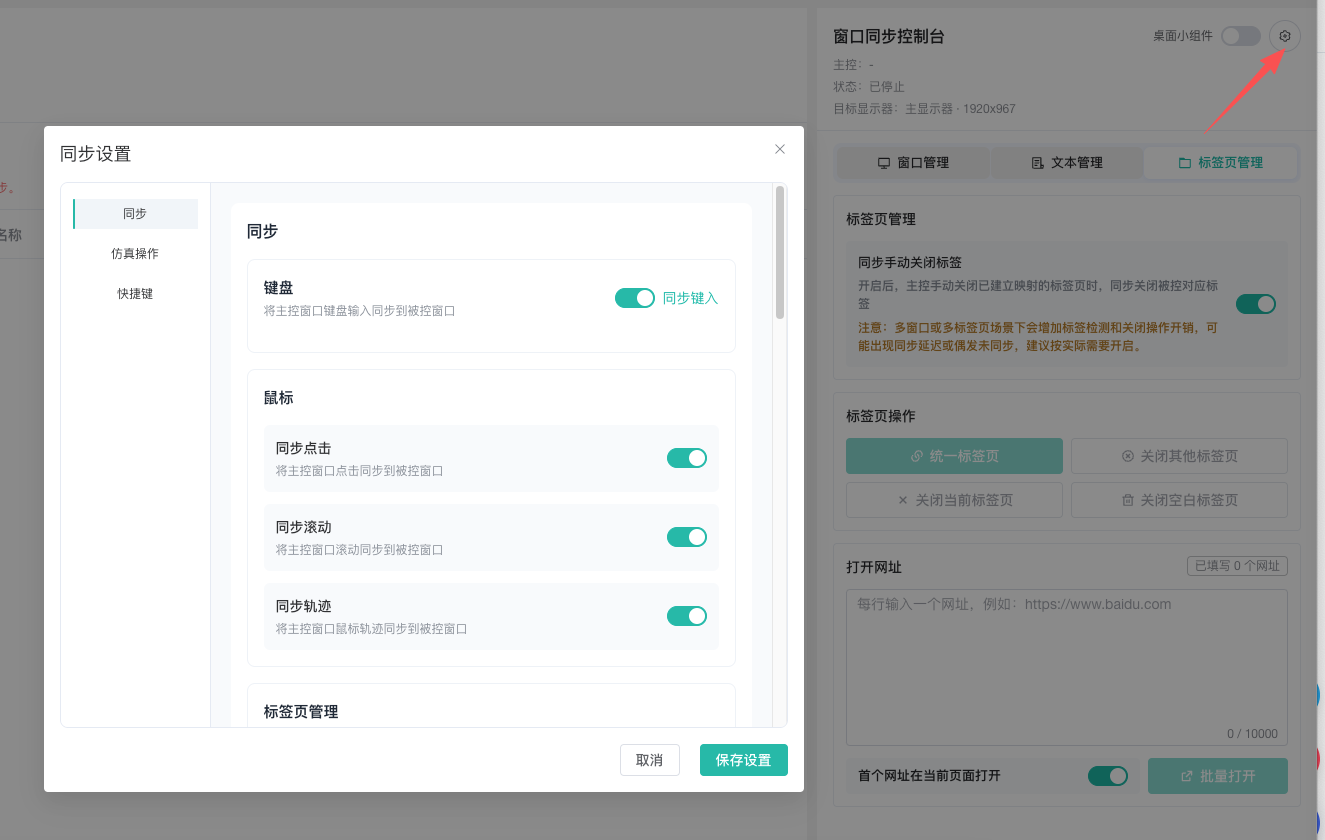
(1) Keyboard synchronous typing: Set whether keyboard keys are synchronized for input
(2) Mouse: Set whether the mouse synchronizes clicking, scrolling, and tracking
(3) Tag page management: Manually close tags synchronously
(4) Simulation operation: Set delayed click and delayed input speed
(5) Shortcut keys: default