
Agent management is divided into three major modules: integrated agent, custom agent, and agent API. Let's delve into each of them in detail
1、Integrated proxy is to purchase IP within the Zhongyi Fingerprint Browser, and the price is relatively more favorable. If you have previously purchased an IP on another platform (Siyetian proxy), you can click on "Synchronize Siyetian Proxy" to synchronize the IP, which is also very convenient.
(1) The types of purchasing agents are divided into: static IP and residential IP. Static IP belongs to server room IP, with a fixed IP suitable for scenarios where a long-term fixed IP is required. Residential IP is similar to home IP, with an unfixed IP that changes periodically within the same city, providing better anonymity.
(2) The bandwidth options include 5m, 10m, and 20m. The larger the number, the better the internet speed
(3) Select the province and city. Choose the IP from the corresponding province and region where you want to be located. To purchase multiple IPs, click the "+" sign to add them.
(4) After selecting the IP, choose the purchase time, and finally make the payment.

2、Custom proxy: If you have an IP address elsewhere, you can choose to set up a custom proxy for individual configuration.
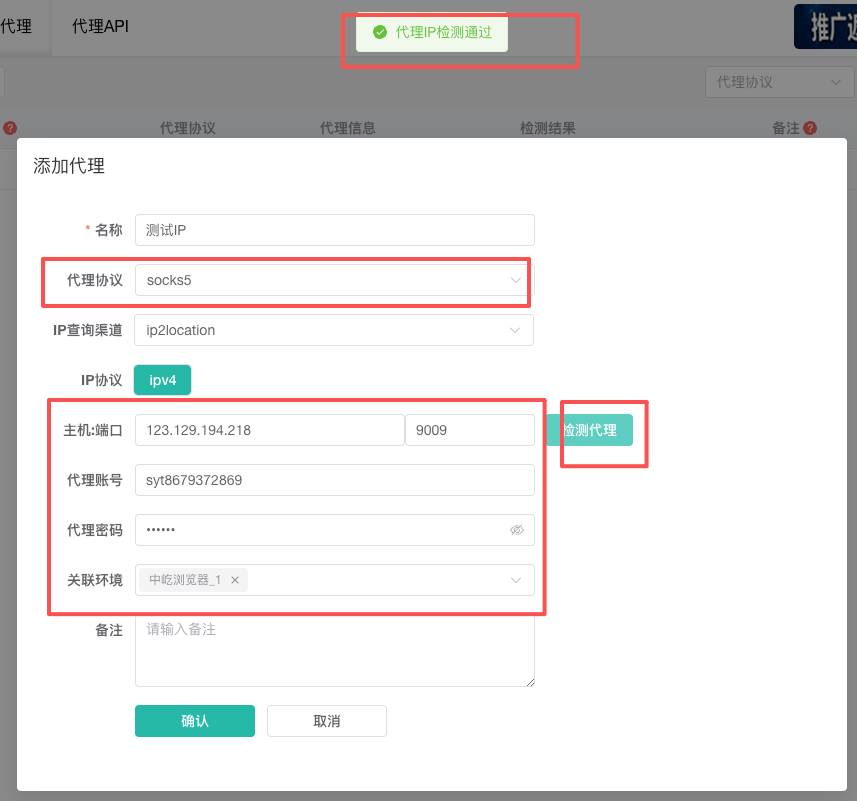
(1) Click "Add Proxy" to enter the proxy IP setting page.
(2) Add proxy settings:
Name: It can be set as desired. For example, if you want to add a Beijing proxy IP, the name can be set as "Beijing Proxy IP"
Proxy IP: You can choose from three protocols: http, https, and socks5. If your IP supports all these protocols and you're unsure which one to set, just choose the socks5 protocol .
The host and port refer to your IP address and port number
The proxy account and password refer to the account and password associated with your IP. If you don't have them, you can leave them blank.
Regarding the associated environment, if you have previously created an environment, you can select it for association. If you haven't created an environment yet, you can leave it blank and bind it separately after the environment is created.
After setting everything above, click on "Test Proxy". If the test passes, it indicates that the set proxy IP is correct. If it fails, there may be a problem with the settings or the IP itself may be different. You can contact customer service for detailed consultation
3、Proxy API refers to setting up the API link obtained from the proxy provider, typically using dynamic IP API as the main approach.
(1) Click "Add Agent" to enter the agent setting page
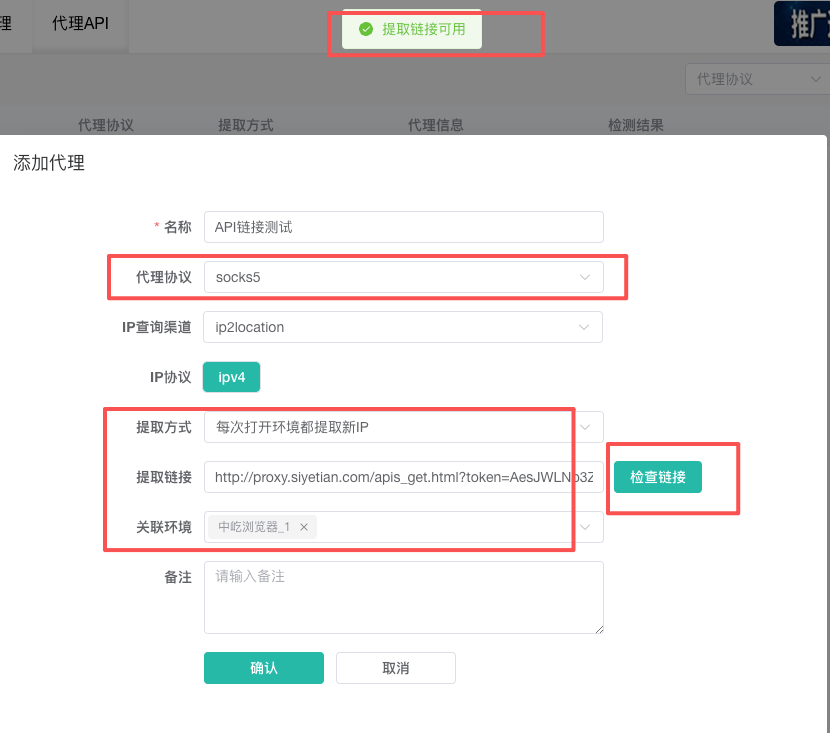
(2) Add proxy (API)
Name: It can be set freely. For example, if you want to add a Beijing proxy IP, the name can be set as "Beijing Proxy IP"
Proxy IP: You can choose from three protocols: http, https, and socks5. If your IP supports all these protocols and you're unsure which one to set, just choose the socks5 protocol .
There are two extraction methods available. You can choose according to your needs. If you have any questions, please contact customer service for detailed consultation.
Extract Link: Enter your API link here.
Associated Environment: For the associated environment, if you have previously created an environment, you can select it for association. If you haven't created an environment, you can leave it blank and bind it separately after the environment is created.
After setting everything above, click on "Test Proxy". If the test passes, it indicates that there is no issue with the set proxy IP. If it fails, there may be a problem with the settings or the IP itself may be different. You can contact customer service for detailed consultation
The above is a detailed introduction to the agent management module. If you wish to know more, please contact customer service for consultation (400-1080-106)